How to Use Traffic Designer for Transit Matrix Analysis
Traffic Designer is a built-in AITracker GUI tool designed to automatically create traffic matrices and transit analysis based on cordon ALPR (Automatic License Plate Recognition) measurements. This tool eliminates the need for manual matching of license plates across multiple measurement points.
Overview
Traffic Designer analyzes vehicle movements across multiple ALPR measurement locations and automatically: - Matches the same vehicles detected at different locations - Creates complete transit routes and traces - Accounts for common OCR errors in license plate recognition - Generates comprehensive traffic flow reports
Prerequisites
Before using Traffic Designer, ensure you have: - Multiple ALPR measurement locations configured and processed - ALPR data collected from all measurement points - Each location properly configured with traffic movements
Step 1: Configure Traffic Movements
Before launching Traffic Designer, you must properly configure movements at each measurement point that is part of your cordon. In the Design tab, when defining movement properties, specify the Traffic Type:
- In – Select for movements that represent traffic entering the cordon area
- Out – Select for movements representing traffic exiting the cordon area
- Internal – This is the default setting; leave it for movements not participating in cordon analysis
Why Traffic Type Matters
The Traffic Designer uses these traffic types to: - Identify valid entry and exit points - Split vehicle traces at appropriate boundaries - Filter out internal movements that don't represent complete transit - Validate transit patterns (entries must have corresponding exits)
Step 2: Launch Traffic Designer
- After collecting and processing ALPR results from all locations, open the Traffic Designer tool from the main menu
- The wizard will guide you through the setup process
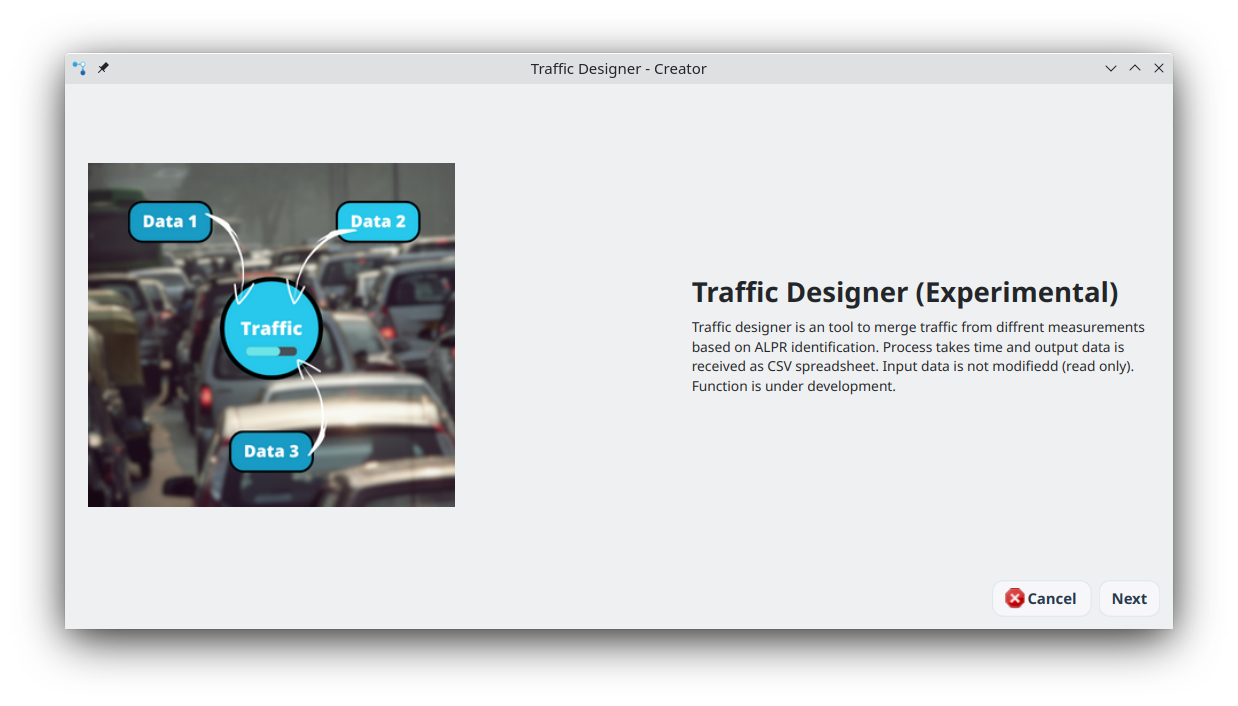
Page 1: Welcome Screen
The first page provides an overview of the Traffic Designer functionality. Click Next to proceed.
Page 2: Project Configuration
Configure your transit analysis project:
Project Settings
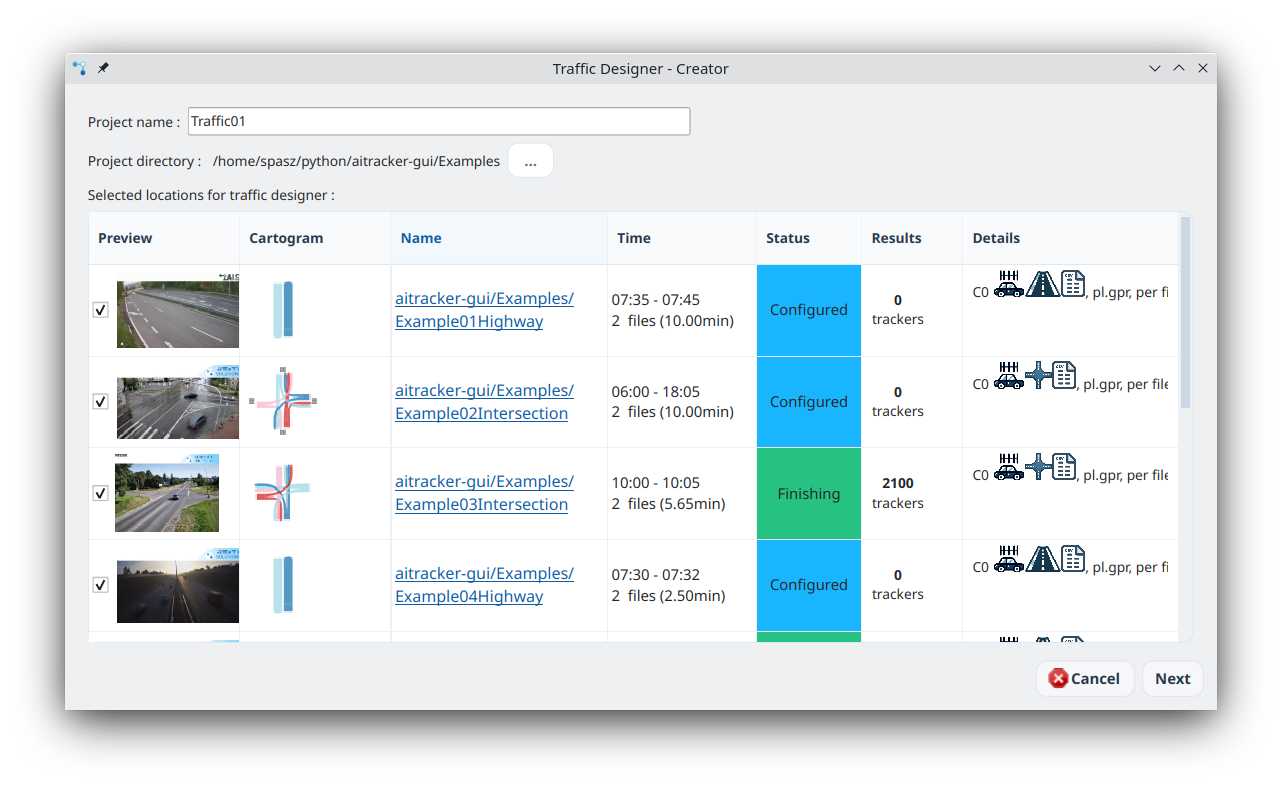
- Project Name: Enter a descriptive name for your analysis (e.g., "Transit_Analysis_City_Center")
- Project Location: Choose the directory where results will be saved
- Click Choose to browse for a different location
- Default location is the parent directory of your last measurement
Location Selection
- The table displays all available ALPR measurement locations
- Check the locations you want to include in the transit analysis
- Only checked locations will be analyzed for vehicle matching
- You can select any combination of locations that form your cordon
Click Next to start the analysis.
Step 3: Automatic Vehicle Matching
Once you proceed, Traffic Designer automatically:
Intelligent Matching
The system identifies the same vehicles across different measurement points using:
- Direct plate number matching for exact matches
- Fuzzy matching algorithm that accounts for common OCR errors:
4↔Aconfusion5↔Sconfusion1↔Iconfusion0↔Oconfusion- And other typical character substitutions
This intelligent matching significantly improves vehicle identification accuracy, especially when OCR quality varies across locations.
Trace Generation
For each identified vehicle, the system creates: - Complete movement trace: Full sequence of locations visited - Timed trace: Each location with timestamp - Split traces: Movement divided into logical segments based on: - Entry/Exit patterns (In/Out traffic types) - Time gaps between detections - Loop detections (returning to same location)
Step 4: Understanding Results
Traffic Designer generates a transit matrix containing:
For Each Vehicle Occurrence:
- Identifier: License plate number
- Label: Vehicle classification (car, truck, bus, etc.)
- Time Start: When vehicle entered the cordon or trace segment
- Time End: When vehicle exited the cordon or trace segment
- Trace: Complete route (e.g., "P1.L -> P2.R -> P3.L")
- Time Trace: Route with timestamps (e.g., "(07:00) P1.L -> (07:15) P2.R")
Trace Interpretation
- Format:
Location.Movement -> Location.Movement - Example:
P1.L -> P2.R -> P3.Lmeans: - Vehicle detected at Point 1, Movement L
- Then at Point 2, Movement R
- Finally at Point 3, Movement L
Multiple Traces Per Vehicle
A single vehicle can generate multiple trace records if it: - Loops back: Returns to the same location after exiting - Makes multiple trips: Enters and exits the cordon multiple times - Has time gaps: Long periods between detections split into separate segments
Example: Daily Commute Pattern
Vehicle SLU111 on a single day:
Trace 1: (06:52) P5.L -> (07:13) P3.L          # Morning commute to work
Trace 2: (07:13) P3.L                           # Parked at work (single point)
Trace 3: (17:29) P3.L -> (17:40) P5.P          # Evening commute home
Step 5: Exporting and Using Results
The generated transit matrix is ready for: - Traffic modeling software import - OD (Origin-Destination) matrix creation - Route analysis and pattern identification - Traffic volume calculations per corridor
Export Options
Results can be exported in various formats: - CSV for spreadsheet analysis - JSON for programmatic processing - PDF reports with visualizations
Best Practices
For Optimal Results:
- Ensure good ALPR quality at all measurement points
- Synchronize clocks across all cameras
- Configure traffic types correctly (In/Out/Internal)
- Include all relevant cordon points in the selection
- Process complete time periods (full days, weeks) for meaningful patterns
Common Issues:
Low Match Rate
- Check ALPR recognition quality at each location
- Verify time synchronization between cameras
- Ensure sufficient measurement points cover the cordon
- Check ALPR recognition quality at each location
- Verify time synchronization between cameras
- Ensure sufficient measurement points cover the cordon
Too Many False Matches
- Review fuzzy matching threshold settings
- Check for duplicate or overlapping detection zones
- Verify location names are unique
Missing Transits
- Confirm all entry and exit points are marked as In/Out
- Check that measurement coverage is continuous
- Verify time ranges match across all locations
Technical Details
Traffic Aggregation Algorithm
Traffic Designer uses the TrafficAggregator class which:
- Groups detections by vehicle identifier
- Sorts chronologically within each vehicle's history
- Applies intelligent trace splitting based on:
- Traffic type transitions (In→Out, Out→In)
- Location changes
- Temporal gaps
- Pattern validation rules
Merge Capability
The system can merge entities with similar identifiers when: - OCR errors create slightly different plate numbers - Same vehicle is detected with minor variations - Fuzzy matching algorithm determines high similarity
Benefits
Using Traffic Designer saves traffic engineers significant time by: - Eliminating manual matching of thousands of license plates - Automatically handling OCR errors that would require manual correction - Generating ready-to-use transit matrices for modeling - Providing detailed movement patterns for each vehicle - No additional cost – included in AITracker GUI
Traffic Designer is part of AITracker GUI's comprehensive traffic analysis toolkit, designed to streamline modern traffic engineering workflows.