How to Download Results from the Cloud
After cloud processing is complete, download the results to your local system.
Prerequisites
Before downloading results, make sure:
- the measurement location, meaning the directory with the video files, is open in AITracker GUI,
- the application can verify the directory using its path and
order.jsonfile.
Step-by-step guide
1. Open the Cloud tab
Open Cloud from the main navigation. It displays all processing orders.
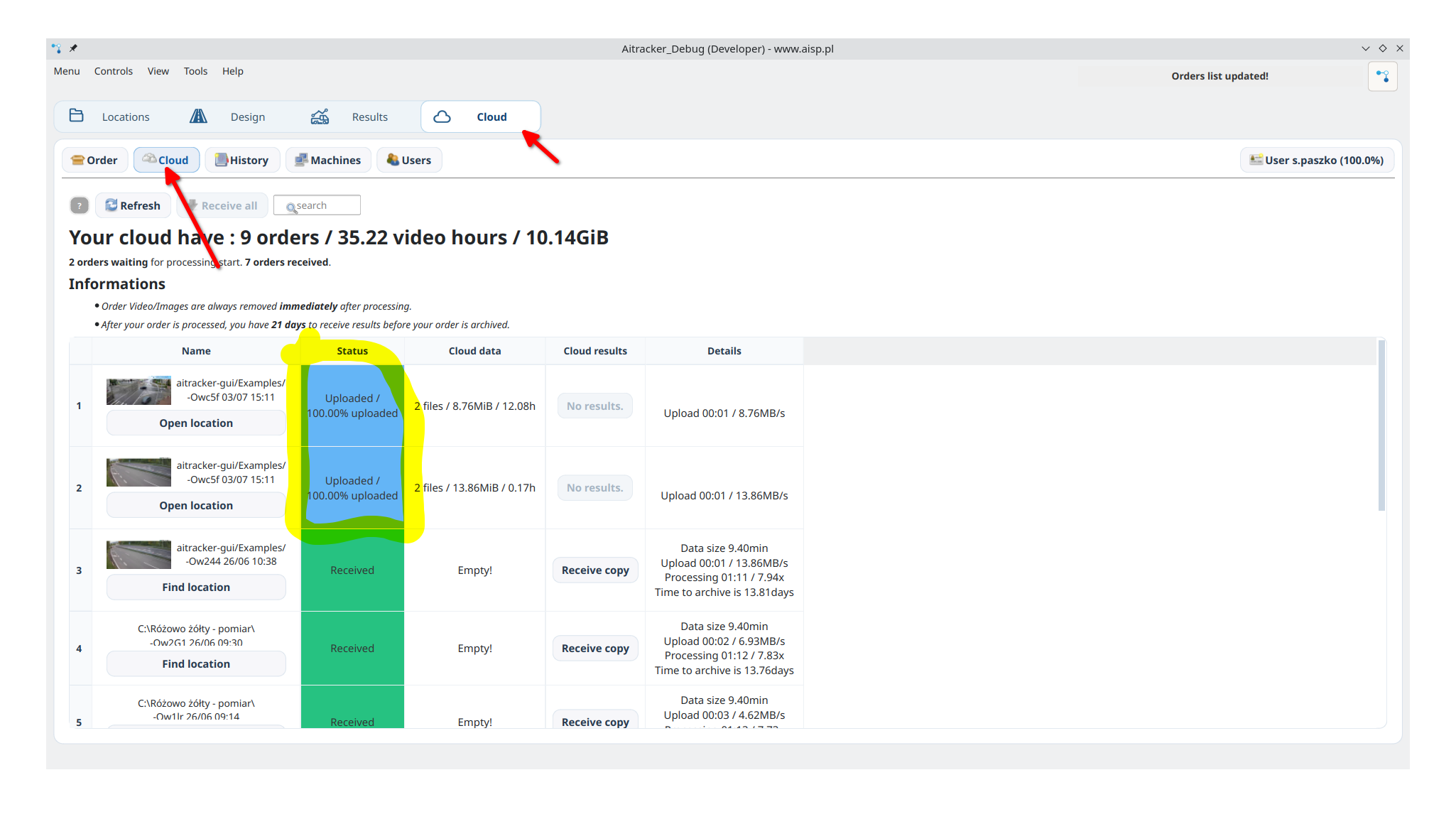
2. Check the order status
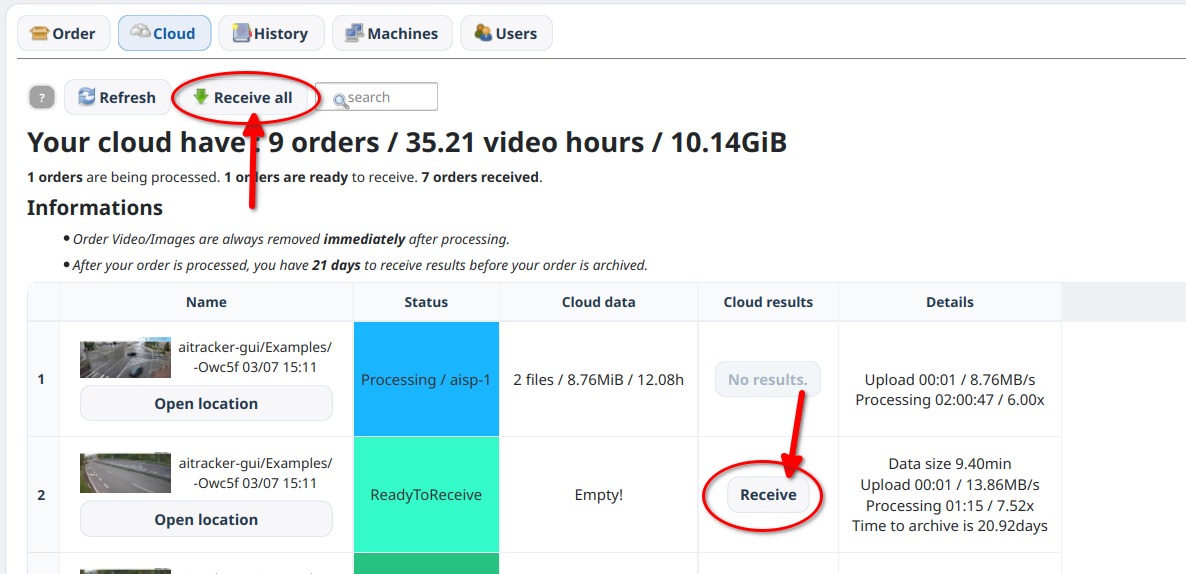
Results can be downloaded only when the order status is ReadyToReceive.
3. Download the results
Two options are available:
Receive all completed results:
- Click Receive all to download all completed orders at once.
Download individual orders:
- Click individual entries in the list to download them one at a time.
4. Automatic report generation
After the download, the application automatically generates all spreadsheets, charts, and reports in the corresponding results directory, for example Configuration0.
Important information
Data security and retention
💡 Interrupted downloads — the application retries temporary network failures automatically. If all attempts fail, partial data is preserved and the next download continues from the saved position.
- To protect privacy, video files are deleted from our servers after processing.
- Results remain available in the cloud for 21 days after processing is complete.
- Order history is retained for billing purposes without the results or videos.
Tips
💡 Email notifications — make sure your email address is configured correctly so you receive completion notifications.
💡 Local copies — downloaded results remain yours. You can add movements and gates, reclassify the data, and generate new reports locally.