Roundabout Configuration and Use
The Roundabout feature models traffic flow through circular intersections by adding a roundabout object and attaching gates directly to its ellipse.
In the Design workflow, it is available under:
- 6. Roundabout — Manage roundabout and automatic movements
When to use a roundabout
Use a roundabout object when analyzing a circular intersection where vehicles enter and leave through multiple approaches.
Before you begin
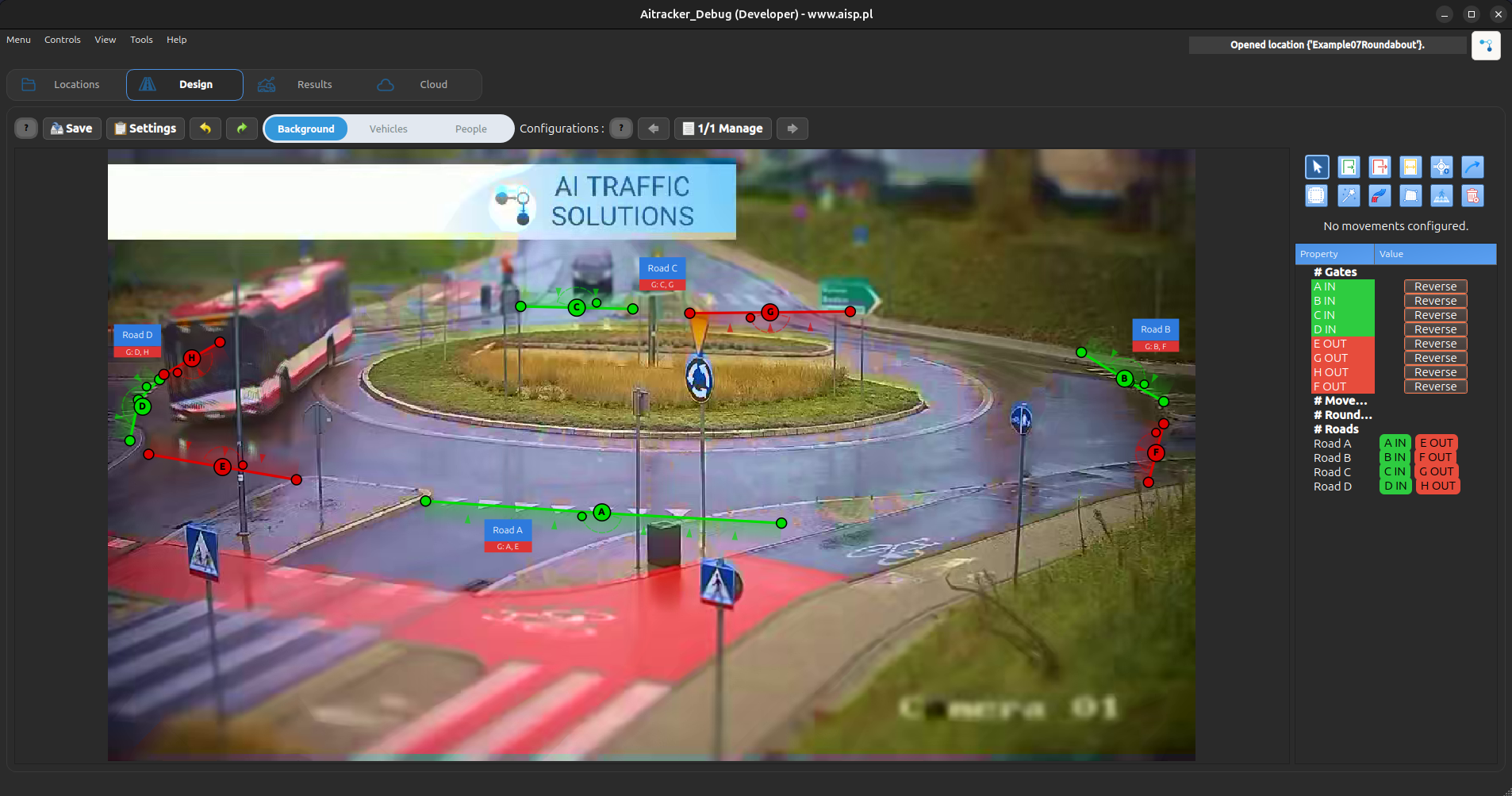
Prepare the scene first:
- Add and position gates in the Gates tab.
- Assign the correct type to every gate:
- Entry — entrance to the roundabout,
- Exit — exit from the roundabout,
- Bidirectional — both an entrance and an exit.
- Check that the gates are close to their corresponding approach lanes.
The gate type determines how the gate is assigned to the roundabout.
Step 1: Add the roundabout shape
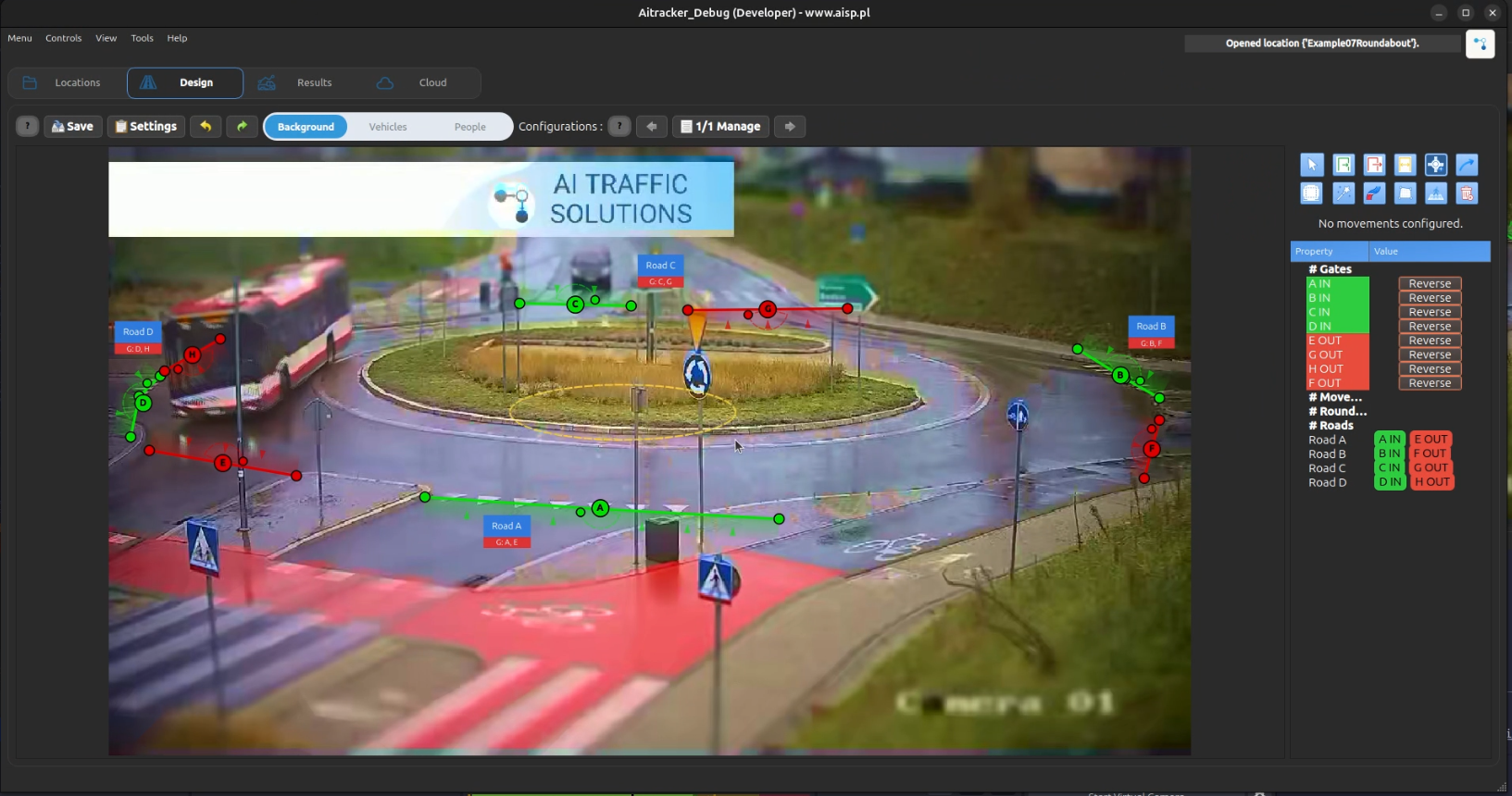
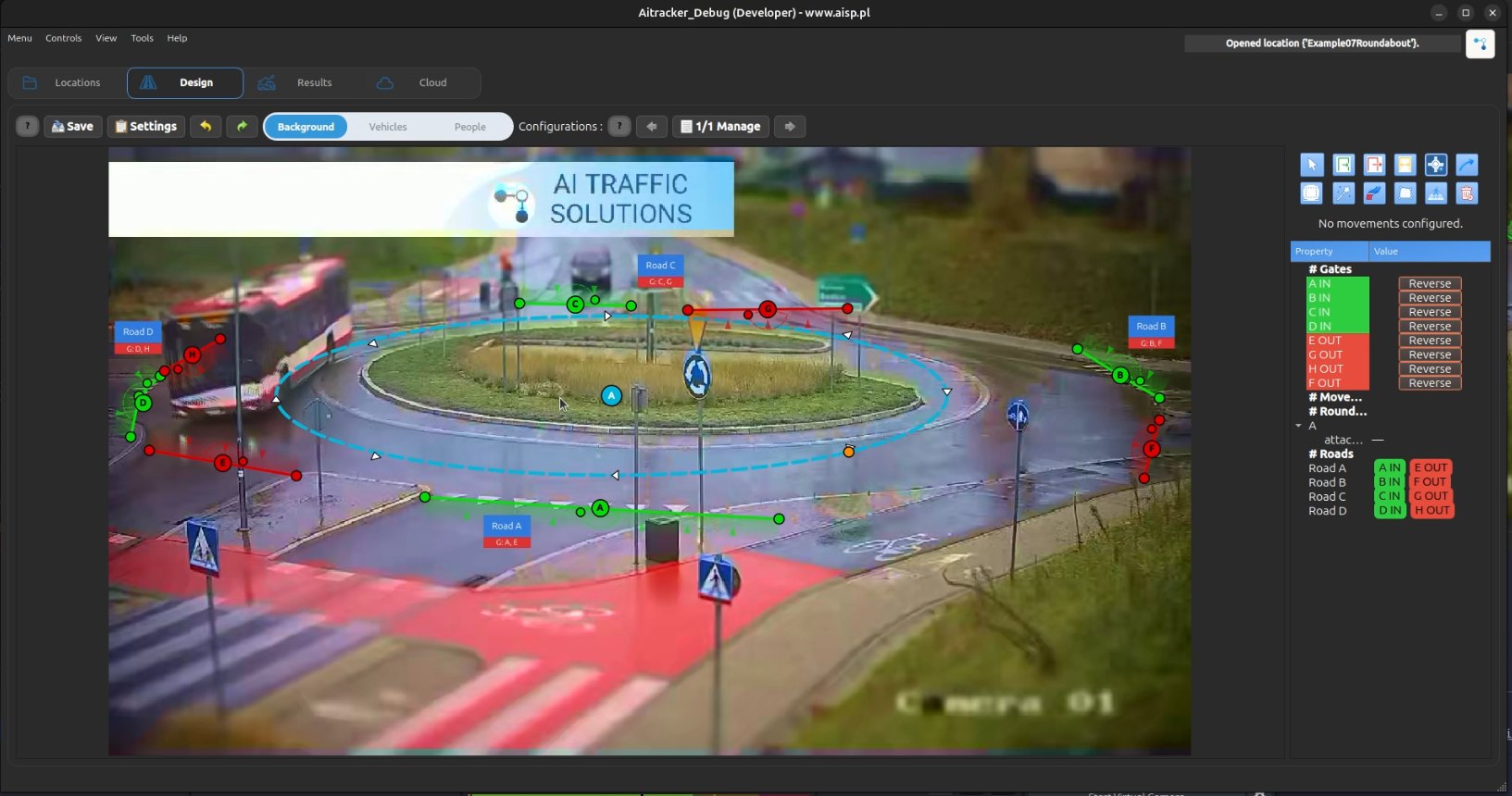
- Open 6. Roundabout — Manage roundabout and automatic movements.
- Click Add.
- On the video frame, click once to set the centre, then click again to set the ellipse size.
- The roundabout appears as an ellipse with direction arrows.
Step 2: Check the circulation direction
Check whether the arrows follow the real traffic direction: Clockwise or Counter-clockwise. If the direction is wrong, click the arrow button on the roundabout card in the scene tree to reverse it. Classification uses this setting to determine the sequence of exits, so set it before assessing results.
Step 3: Attach gates to the ellipse
Right-click the roundabout ellipse and use the attachment action:
- Select Add Attachment Here.
- Select a gate ID from the list.
- Repeat for every gate connected to the roundabout.
- Drag attachment points around the ellipse to correct their angular positions.
Gate attachment point
- The attachment position directly affects exit estimation.
- Place it according to the real trajectory path, not arbitrarily in the middle.
- An incorrect attachment point can assign an object to an adjacent exit, especially when trajectories are partly obscured.
- See Gates for the detailed configuration rules.
Merged tracklets in results
If tracking loses a vehicle on the roundabout and detects it again before the exit gate, AITracker can merge both fragments before movement classification. Both fragments remain visible in the results table. The counted tracker has the ValidatedMerged status; the consumed fragment has MergedUncounted and an orange tile. Hover over either fragment's TUID to display the linked tracker identifier.