Frequently Asked Questions
A list of the most frequently asked questions and their answers.
The program doesn't see or open my .mp4 video file?
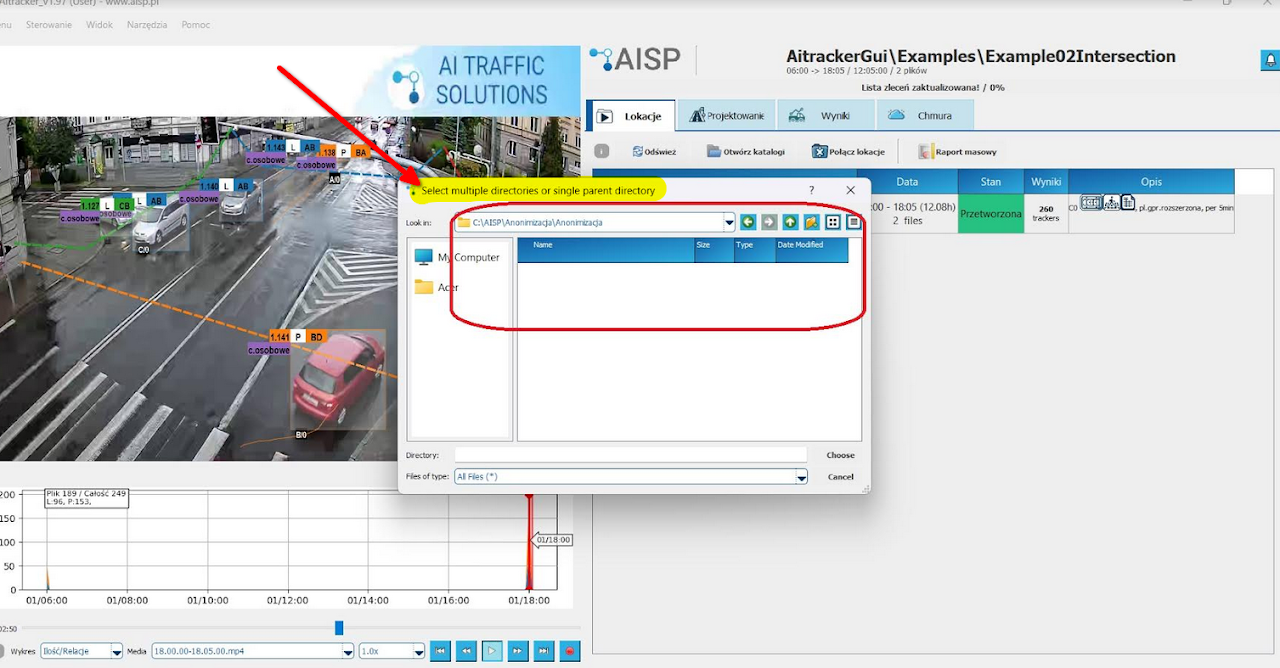
Everything is fine! AITracker works with entire directories, so you need to point to a directory or directory tree. Simply click "Open" and videos will be loaded from the directory and all subdirectories.
I can't download the results, why?

You need to open the measurement location in the program again to download the results. The system verifies the location/directory identity based on:
- The path to the directory
- The presence and data in the
order.jsonfile
The location must first be opened in the program, and only then will AITracker verify it and allow you to download the results.
Password change and password recovery don't work
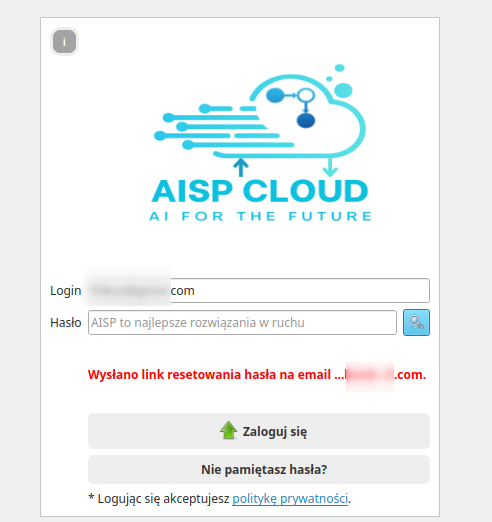
To reset your password, click the "Forgot password?" button when you have entered your login as an email. Then a link will be sent to the provided user email, which you can use to reset your password.
At AISP, passwords must contain at least 12 characters. We recommend using a password generator and password manager. Because password recovery is handled by the cloud-service provider, the length requirement may not be displayed on every reset screen.
How to register in the cloud and receive hour allocation?
To use the cloud processing service and receive video processing hours:
- Create an account by clicking the "Register" button in AITracker or visit the cloud portal directly.
- Verify your email by clicking the link sent to your registered email address.
- Select a plan based on your video processing needs:
- Free tier: Limited preview and demonstration hours
- Standard plans: Monthly or yearly subscription with hourly allocations
- Custom plans: Contact kontakt@aisp.pl for enterprise solutions
- Add billing information to your account and confirm your payment method.
- Start processing: Once activated, your allocated hours will be available in AITracker. Simply submit videos for cloud processing.
Your remaining hours are displayed in the AITracker application. Hours are consumed based on actual video duration processed (not real-time). For example, 1 hour of video consumes 1 allocated hour, regardless of processing time.
What time and date formats does AITracker recognize?
Video recorders have different file naming conventions. Most often, the file name contains the recording start time/date. Some devices also add the recording end time. When processing a directory, AITracker relies on the correctness of the time in file names. It will sort and process the directory from the earliest video to the latest.
File naming formats that AITracker automatically recognizes:
12.05.00-12.10.00[R][0@0][0]12.00.00.avior12.00.00-13.00.00.avi12606_2025-01-23_1500_1505.avi02-OMAZ_2021-05-06_2355_00002023_1010_111546.mp4VID_20230307_112025.mp4R67_ch1_Main_20200915180000_20200915190000(1)07.00.00-08.00.00[R][0@0][0]_20220407070000_2022040708000.aviGX060318.mp4SCPR_12002_NAZWA_cam2_cam2_20231213001158_20231213001751_97842063732_100_044419723_0300.h2649_6_40_2023-10-2_Południowa
If your format is not recognized, please send a message to kontakt@aisp.pl.
During file upload, the message "file xxx.avi has no start or end time" appears!
Check if your date format is supported by AITracker. The time and date for processing and each individual tracker is taken from the file name. If your format is not recognized, please send a message to kontakt@aisp.pl.
Why can't I upload more than 24 hours of material?
A single directory or measurement point can contain no more than 24 hours of continuous recording. The limit is measured from the beginning of the first file to the end of the last file, not as the sum of individual file durations.
If the application reports a range longer than 24 hours even though the total duration is shorter, too much time elapsed between the first and last recording.
In that case:
- split the files into two directories,
- make sure each directory covers no more than 24 hours,
- create a separate measurement point for each directory,
- upload the material again.
For example, recordings beginning at 10:00 and ending at 15:00 on the following day cover 29 hours and must be split into at least two measurement points.
Will classes not present in the selected classification appear in the spreadsheets?
Classes not present in the classification will not be included in the generated spreadsheets, reports, or charts. Classifications can also be changed after counting, allowing you to generate multiple results in multiple classifications.
How to reduce video quality? (simple anonymization)
Sometimes clients require video anonymization. We invite you to first use our Anonymization service, but another option is to reduce video quality. This procedure can be done manually on the client side using external video encoding software. Each video is encoded with a "selected codec," and these codecs often have a "parameter" for reducing quality/bitrate.
Example
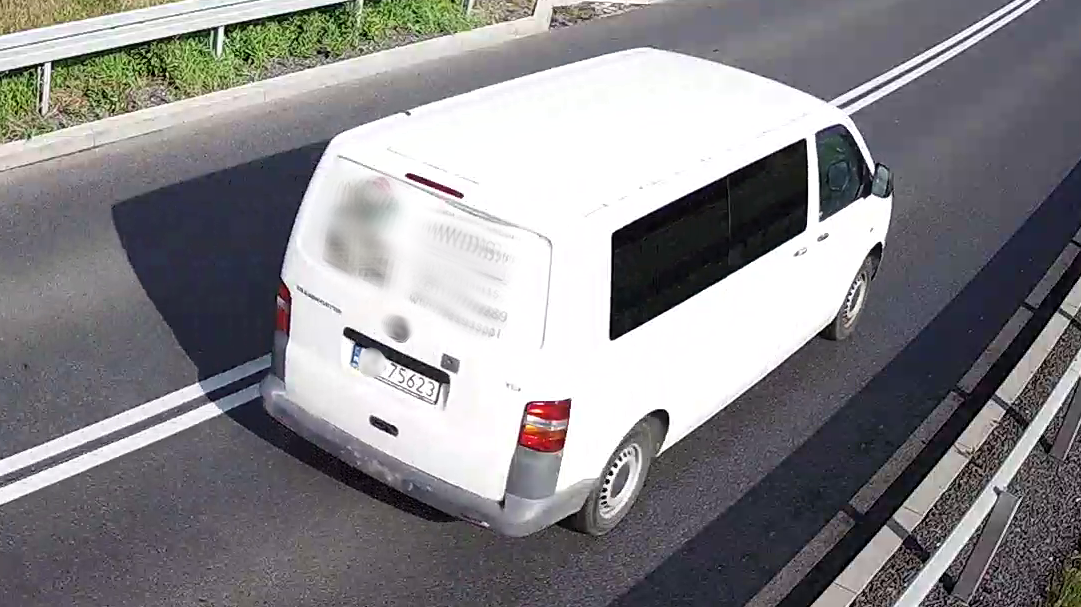
Using FFMPEG (https://ffmpeg.org/download.html), you can try to transcode recordings to H265 and select lower recording quality. In lower quality, vehicles will still be visible, but license plates will become blurred and unreadable. Below is an example ffmpeg command:
ffmpeg -i "input.mp4" -c:v libx265 -an -crf 42 output.mp4
| Original recording | H265 compression, CRF42 |
|---|---|
 |
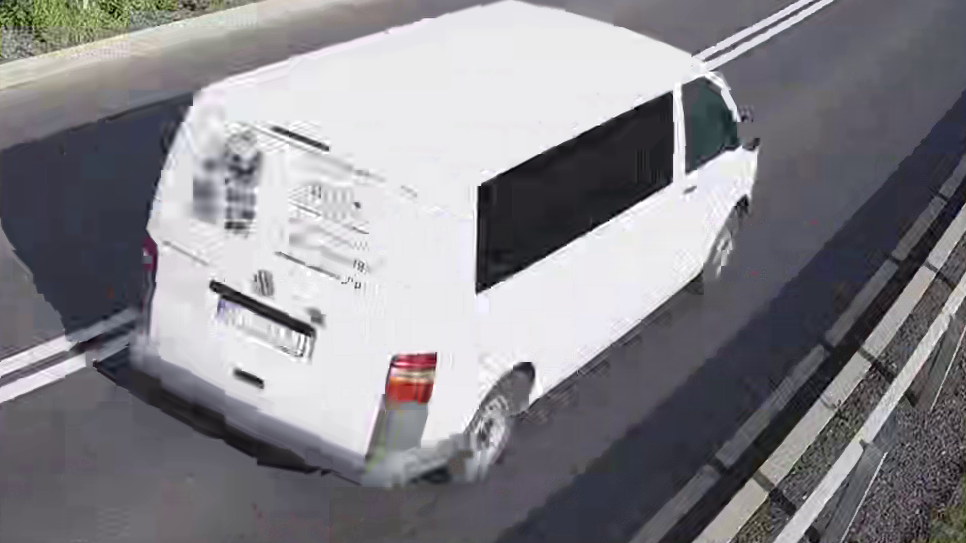 |
| The registration plate is readable. | Lower quality makes it difficult to read. |
Warning!
We warn that different codecs may have their own licenses and are often paid. Use codecs according to their intended purpose and license. An example license description for H265 can be found at: https://en.wikipedia.org/wiki/High_Efficiency_Video_Coding#Patent_license_terms
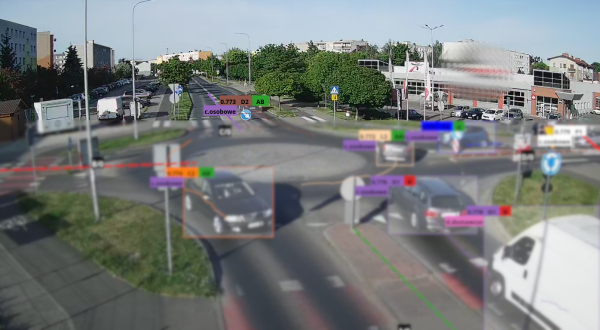
Another anonymization method can be blurring the bottom (closer to the camera) part of the image or gently blurring the entire frame. This way, using available video editing tools, you can achieve the goal.
| Lower part of the frame blurred | Entire frame blurred |
|---|---|
 |
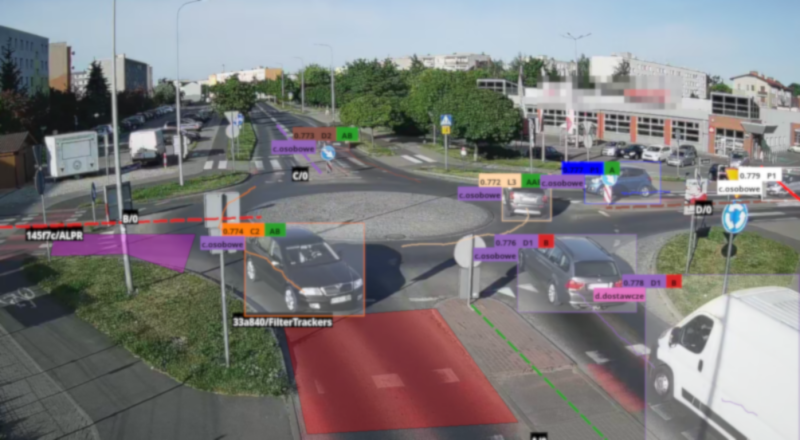 |
| This may be sufficient when registration plates appear mainly close to the camera. | This provides stronger anonymization but reduces the readability of the complete recording. |
Where does AITracker create configuration and result files?
For each directory with recordings, we create a configuration file config.json and subdirectories with results for each configuration: Configuration0, Configuration1, etc.
Example: Video files are located in the Video1 directory. The measurement configuration is in Video1/config.json. We have only one configuration. The counting results for the first (zero) configuration are in Video1/Configuration0.
How to correct already counted results?
The entire process of correcting results can be broken down into 3 steps:
- Correcting the measurement point configuration - more about designing.
- Re-classifying all trackers - more about reclassification.
- Generating reports again - more about reporting.
Can I use "zoom" for distant areas of an intersection?
This is zoom with cropping. We crop before counting the video, and we send the configured measurement to the cloud. Then the cloud will count the cropped image, and smaller objects will be better detected.
If you want to count two configurations from one video (e.g., one with the full frame and another zoomed in on a distant area), you can add two counting configurations for that directory (configurations are at the bottom of the Design tab). Then the directory is counted 2x in the cloud for each configuration separately. The counting cost is doubled, but you save on cloud upload (only once).
Importing points from the GPR database
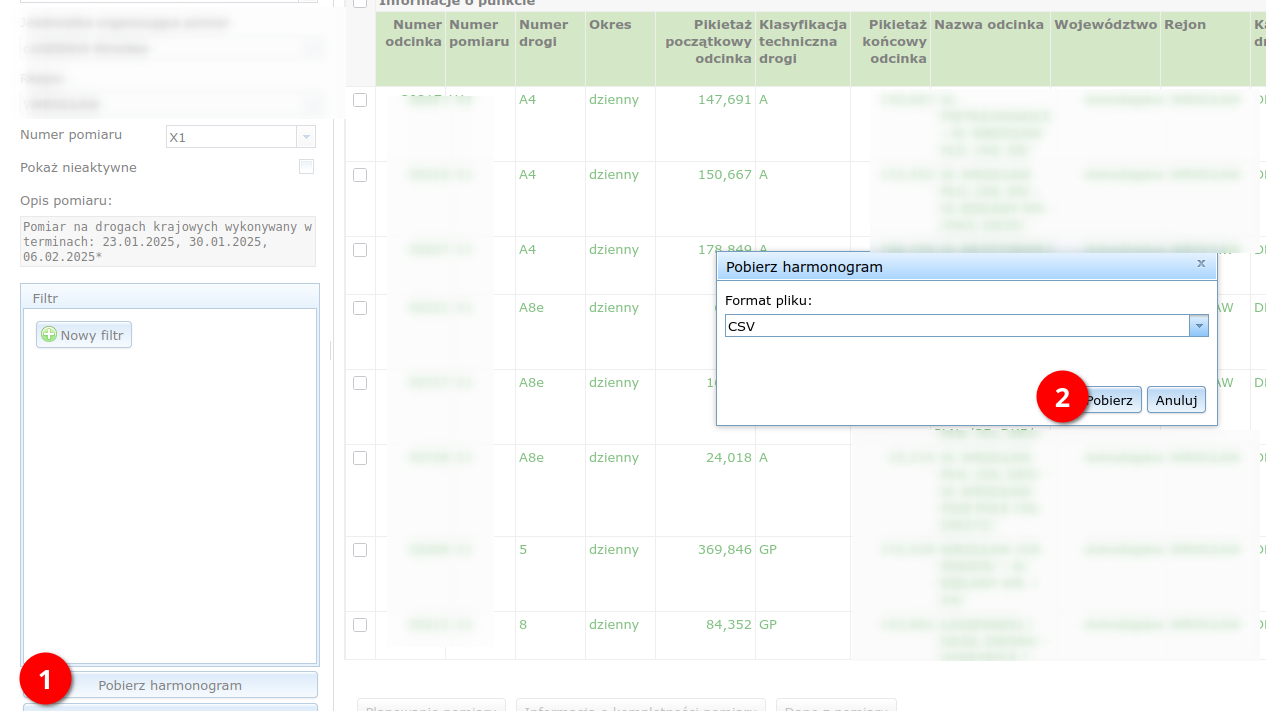
You can import a measurement schedule from the GPR VERA database directly into AITracker and then select a point in the application. Point data appears in the configuration, next to movement names, and in the XML document.
Incorrect XML fields, such as kategoria_drogi instead of kat_dr, as well as the XML format and row count, have been corrected.
How to import points
| Step | Screenshot |
|---|---|
1. Export the measurement schedule from VERA as a .csv file. |
 |
| 2. Load the CSV file in AITracker. Open Design, click Import GPR Points in the measurement-point metadata section, and select the exported file. | 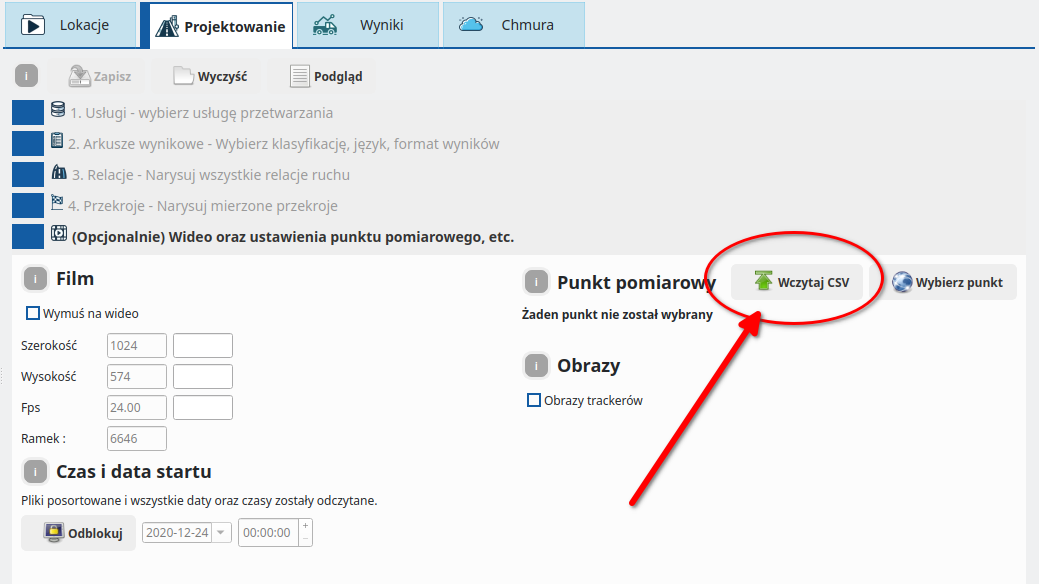 |
| 3. Select the point in the configuration to load its data for the order. The data also appears in the XML file. | 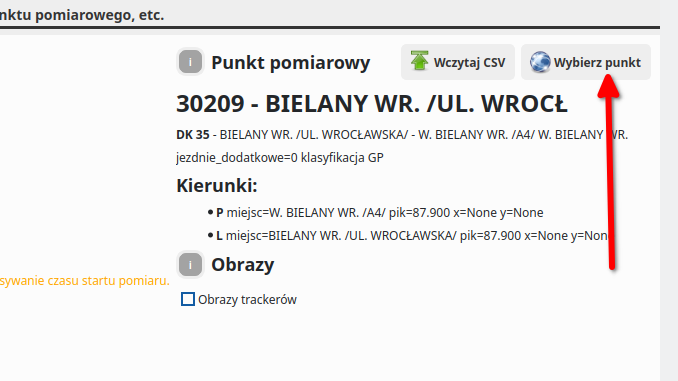 |
| 4. Check the directions loaded from the point in the video preview for configured AB or BC movements. | 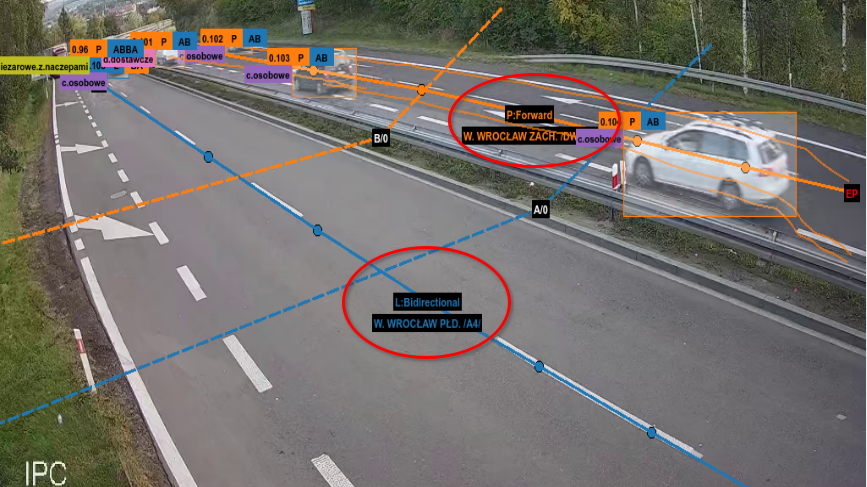 |
Generating XML for the General Traffic Measurement 2025
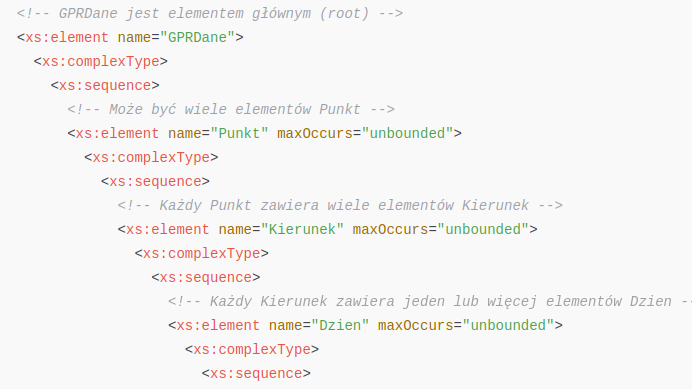
AITracker generates ready-made spreadsheets and detailed reports compliant with the GPR2025 classification. Moreover, for GPR2025 purposes, we generate XML files with exactly the same data that you can later submit to the GDDKiA system.
Whether you need data for intersections, cross-sections, or speeds – our solution provides all the necessary information in a clear format.
How to generate?
- Select the classification
pl.gpr,pl.gpr.rozszerzona, orpl.gpr2020 - In the Results tab, click the "Report spreadsheets" button
When should I use bidirectional gates?
- With complex roundabout geometry and tight curves, bidirectional gates often give more stable assignments than an entry/exit pair placed close together.
- If the movement map contains many unclassified trajectories near the boundary between two directional gates, first replace them with a bidirectional gate.
Why is a roundabout gate attachment point so important?
- Its position directly affects exit estimation.
- Place it according to the real trajectory path rather than arbitrarily in the middle.
- An incorrect point can assign an object to an adjacent exit.
How should I draw movements for stable classification?
- Draw each movement as close as possible to the real vehicle trajectories.
- A smaller difference between the movement and actual paths gives more reliable assignments.
- After changes, run reclassification and inspect one movement at a time with the movement filter.
How do I diagnose gaps in results and interval problems?
- A file playing in VLC does not guarantee that the analytical pipeline can process it correctly.
- If results contain gaps, inspect media parameters and interval-data continuity.
- Mark a partially processed interval for manual verification and correction.
Checklist:
- Do trajectories cross every required gate?
- Is each roundabout gate attachment aligned with real trajectories?
- Are movements drawn along real travel paths rather than as shortcuts?
Can Polish characters in the project path cause errors?
Yes. Project and video paths should currently contain ASCII characters only, without characters such as ą, ę, ś, ó, or ź.
Move the project to a path without Polish characters or spaces, for example C:\AITracker\Project1\, and open it again.
I have a problem that is not described here!
Please send the application log file to kontakt@aisp.pl. You can open the log file in the AITracker program by going to Menu → Help → Log.