How to Download and Install AITracker GUI
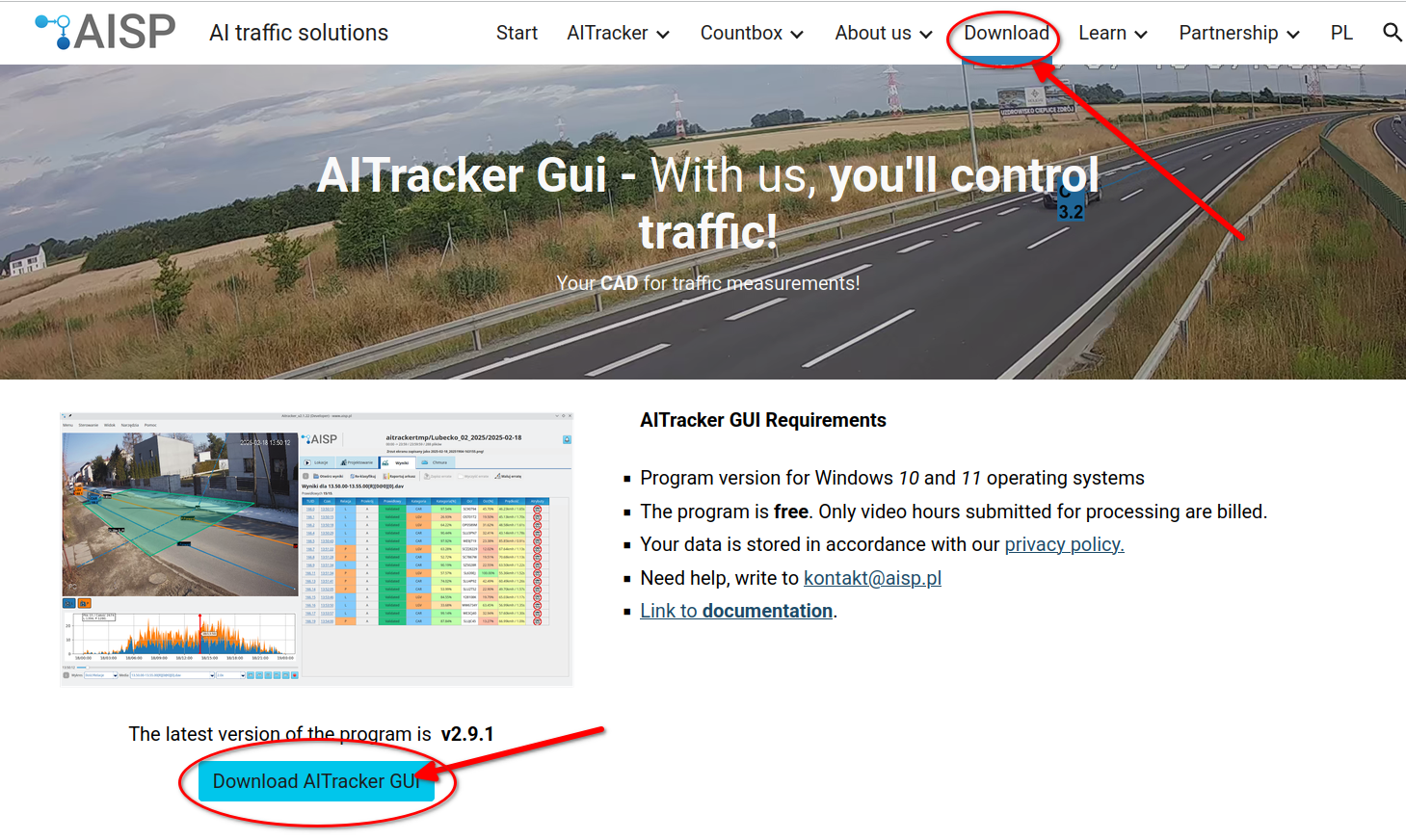
1. Visit the official website
- Open www.aisp.pl and go to the Download section.
2. Download the installer
- Select the Windows installer download.
- The application is distributed as an
.exesetup file, for exampleaitrackergui_setup_vX.X.X.exe.
3. Run the installer
- Open the downloaded installer.
- Select your language.
- Accept the licence terms and conditions.
- Follow the instructions displayed by the setup wizard.
- Approve the Windows administrator prompt. Program files are installed in
Program Filesfor every user of the computer.
4. Launch the application
- Open the Windows Start menu and search for AITracker GUI.
Settings, logs, cache, temporary files, and editable copies of examples are stored separately in the current user's profile. Updating or uninstalling the application does not require working data to be stored in Program Files.
Automatic updates
AITracker GUI checks for a newer version when it starts. When an update is available:
- Confirm that you want to download it.
- Continue working while the installer downloads in the background; progress is shown in the application.
- When the Update ready dialog appears, choose whether to install the downloaded version.
- If you select Yes, AITracker GUI closes, starts the installer, and Windows may request administrator approval. Start the application again after installation finishes.
If the installer cannot be started automatically, the application displays its downloaded location so that you can run it manually.
Technical requirements and information
- Operating system: Windows 10 or Windows 11.
- Internet access: required for cloud-processing features.
- Cost: AITracker GUI is free to download and use. You pay only for the actual duration of video sent to the AISP cloud for processing.
-
Account registration: uploading recordings requires a company cloud account created with an email address and business details. Every new user receives 24 free processing hours for testing.
- Terms of Use