How to Send Videos to the Cloud for Analysis
Before you begin
1. Create an account
Business accounts only:
- AISP Cloud is intended for business customers.
- Provide complete company information during registration.
- Confirm the email address with the activation link.
See the User Registration Guide.
2. Configure the measurement
Configure the recordings before uploading them. The system must know how to interpret traffic in the videos.
3. Check the recording time range
One directory or measurement point can contain no more than 24 hours of continuous recording.
The range is measured from the beginning of the first file to the end of the last file, not as the sum of individual file durations. Gaps between files do not reduce this range.
For example, if the first file begins at 10:00 and the last ends at 15:00 on the following day, the range is 29 hours and the material must be split into at least two points.
If the material covers more than 24 hours:
- split the files into separate directories,
- ensure that each directory covers no more than 24 hours,
- create a separate measurement point for each directory,
- upload and process the material again.
Step-by-step guide
1. Send to the cloud
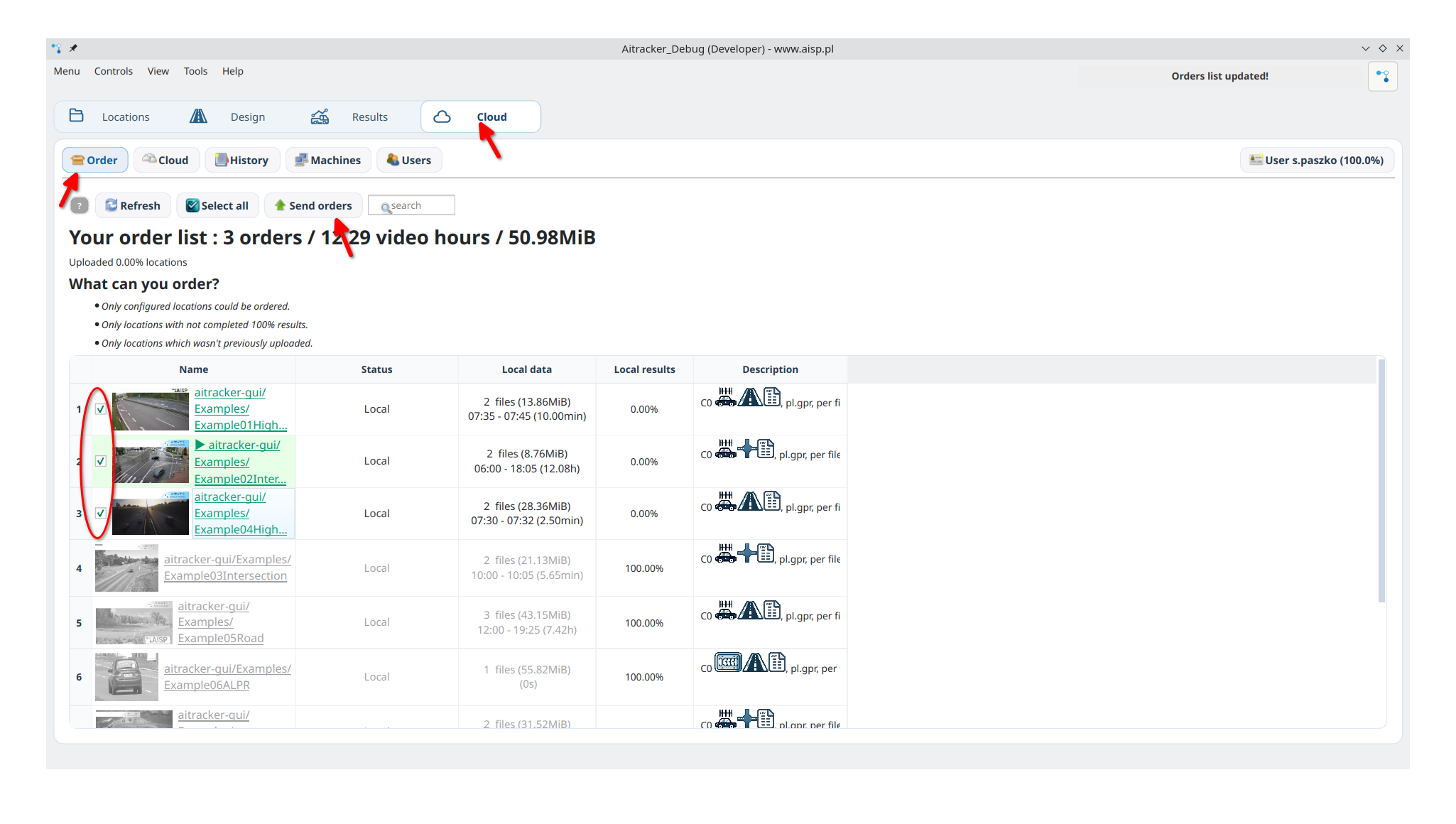
After configuring the measurement:
- Go to Cloud.
- Select the locations to be analyzed.
- Click Send orders to start uploading.
2. Monitor upload progress
- A progress bar appears at the top of the window.
- It displays cloud-confirmed bytes, the speed of this upload, and the completion percentage of the entire selected basket. Progress is proportional to file size, including baskets containing one large file.
- After a successful upload, the order status changes to Uploaded.
- A sent order cannot be selected again.
What happens after upload?
Cloud processing
Videos and configurations are stored in Google Cloud Platform and processed by AISP servers in the European Union.
Email notification
An email notification is sent when processing is complete and the results are ready to download.
Privacy and security
- Videos are deleted from the servers immediately after processing.
- Only analysis results are retained.
- Results remain available for download for 21 days.
Troubleshooting
“Missing start/end time” error
- Check whether the recording filenames and media metadata provide enough information to determine the beginning and end of the material.
- A missing date is not an error by itself: a recognized time-only format uses the technical date
1900-01-01. - The error means that AITracker cannot build the required timeline, for example because it cannot recognize the start time or determine the recording end.
- Compare the names with the supported filename formats and correct unrecognized names before uploading again.
Recording range exceeds 24 hours
This warning means that more than 24 hours elapsed between the beginning of the first file and the end of the last file, even if the total video duration is shorter.
- Split the material into separate directories or points.
- Ensure that each covers no more than 24 continuous hours.
- Upload them again.
For a range from 10:00 to 15:00 on the next day, use one point for 10:00–10:00 on the next day and another for 10:00–15:00.
Upload fails or stops
- Check the internet connection.
- Check that sufficient processing hours are available.
- Make sure the directory contains valid video files.
- A single video may be up to 50 GiB, provided the complete order does not exceed 125 GiB.
A location cannot be selected
- The order may already have been sent; check its status.
- Check that the directory contains
config.json. - Make sure the measurement is configured correctly in Design.
Tips
💡 Batch uploading — select several locations at once.
💡 Plan ahead — configure every measurement before uploading.
💡 Stable connection — use a reliable internet connection for large video files.
💡 Filenames — correctly named files provide an accurate time axis.
💡 Time range — split recordings covering more than 24 hours before uploading them.
Next steps
- Wait for the email notification.
- Download the results within 21 days.
- Generate reports and analyze traffic patterns.