Ustawienie i użytkowanie ronda
Funkcja Rondo pomaga w modelowaniu przepływu ruchu na okrągłych skrzyżowaniach poprzez dodanie obiektu ronda i dołączenie bram bezpośrednio do elipsy.
W przepływie pracy projektowania jest to dostępne w karcie:
- 6. Rondo – Zarządzaj rondem i automatyczne relacje
Kiedy używać ustawienia Ronda
Używaj ustawienia ronda, gdy:
- Analizujesz okrągłe skrzyżowanie, gdzie pojazdy wjażdżają i wyjeżdżają przez wiele podejść
Zanim zaczniesz
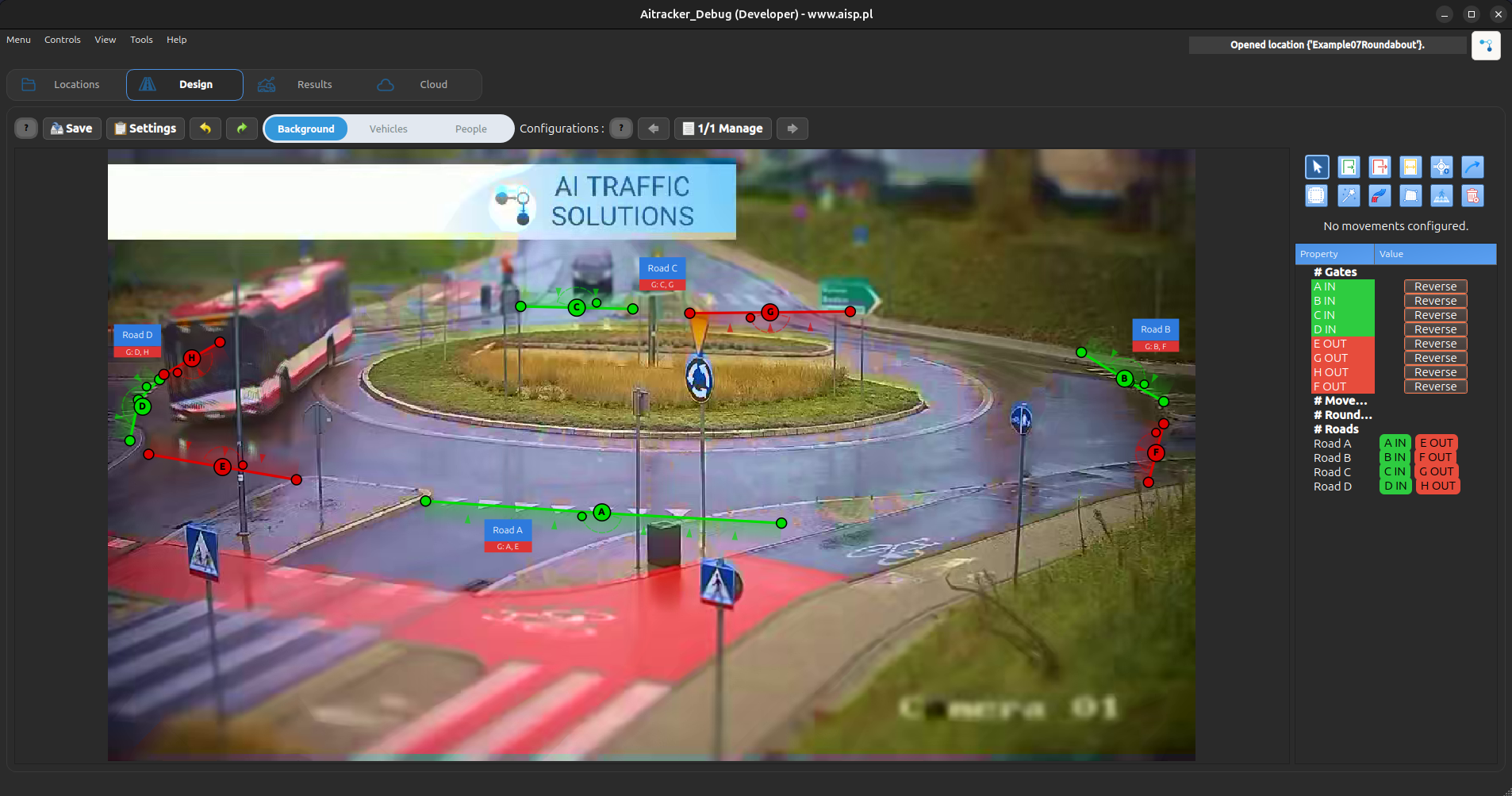
Przygotuj scenę najpierw:
- Dodaj i pozycjonuj bramki w karcie Bramki
- Ustaw prawidłowo każdy typ bramy:
- Wejście = wejście na rondo
- Wyjście = wyjście z ronda
- Dwukierunkowy = zarówno wejście, jak i wyjście
- Sprawdź, czy bramki są umieszczone blisko każdego pasa podejścia
Typ bramy decyduje o tym, jak brama jest przypisana pod rondem.
Krok 1: Dodaj kształt ronda
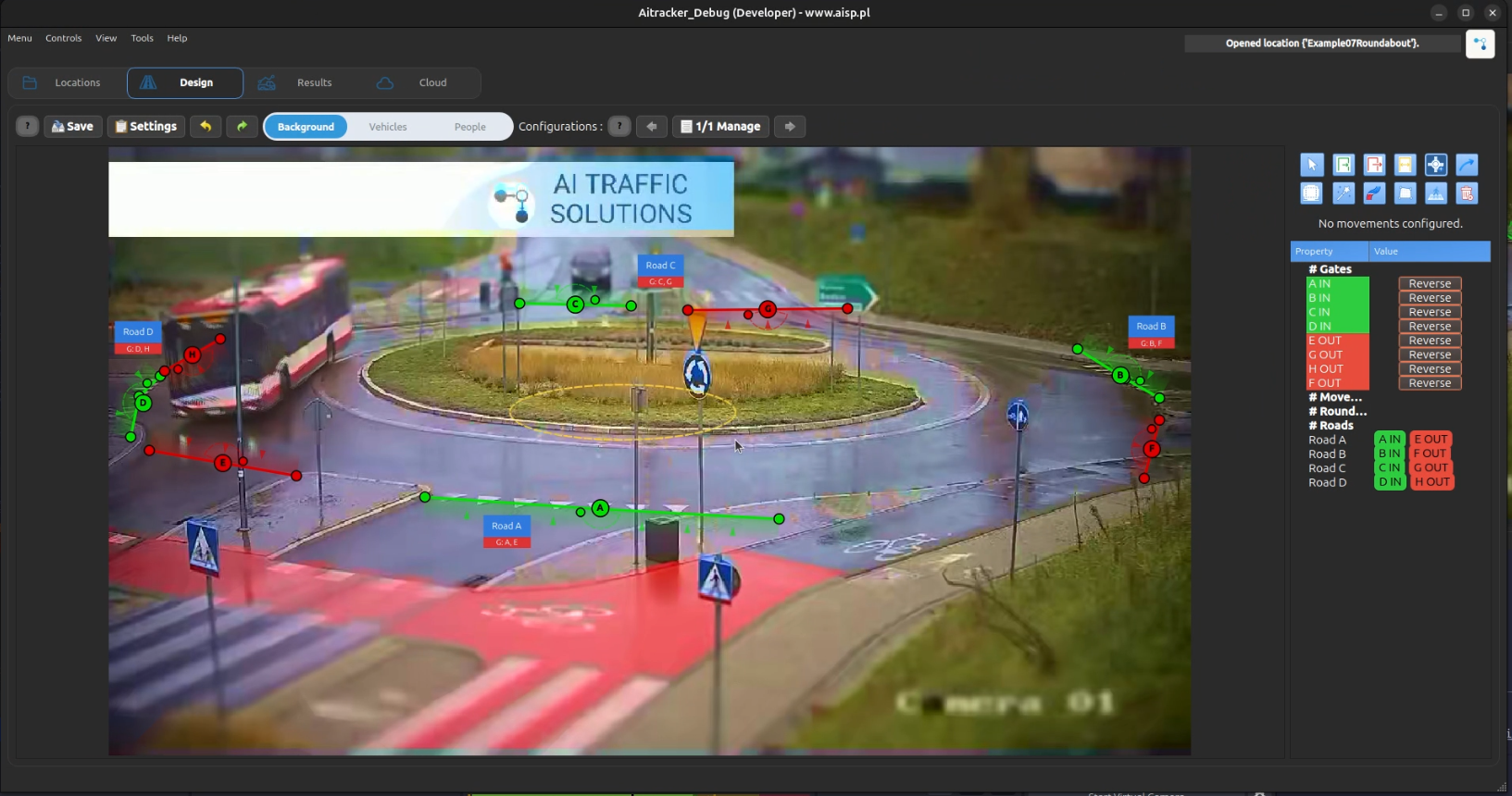
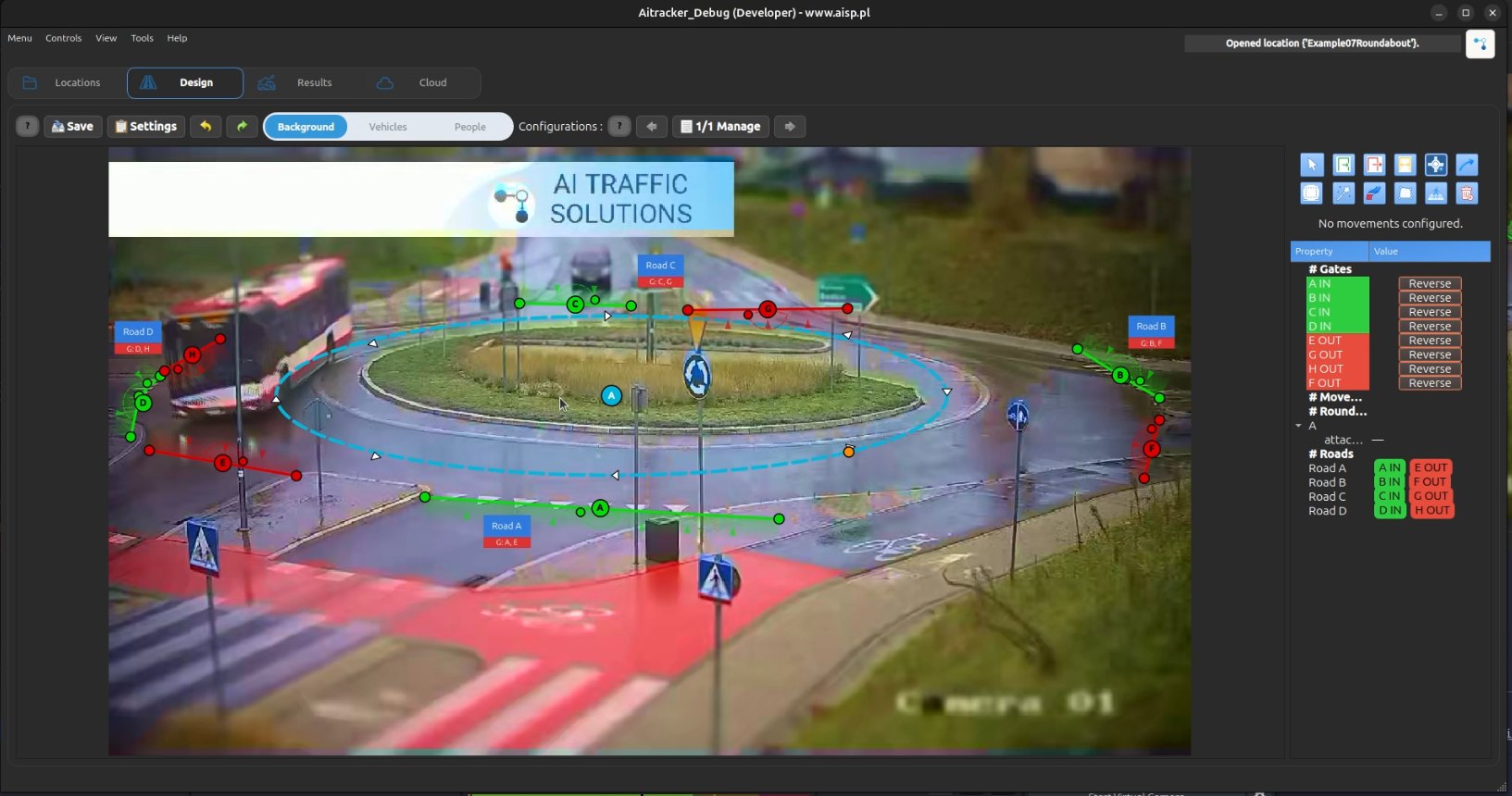
- Otwórz kartę 6. Rondo – Zarządzaj rondem i automatyczne relacje
- Kliknij Dodaj
- Na kadrze wideo:
- Pierwsze kliknięcie ustawia środek ronda
- Drugie kliknięcie ustawia rozmiar elipsy (promień)
- Rondo pojawia się jako elipsa ze strzałkami kierunku
Krok 2: Sprawdź kierunek ruchu
Sprawdź, czy strzałki odpowiadają rzeczywistemu kierunkowi ruchu: zgodnie z ruchem wskazówek zegara albo przeciwnie do ruchu wskazówek zegara. Jeżeli kierunek jest błędny, kliknij przycisk ze strzałką na karcie ronda w drzewie sceny, aby go odwrócić. Klasyfikacja używa tego ustawienia do ustalania kolejności zjazdów, dlatego ustaw je przed oceną wyników.
Krok 3: Dołącz bramki na elipsie
W edytorze kliknij prawym przyciskiem myszy na elipsę ronda i użyj akcji dołączenia:
- Wybierz Dodaj załącznik tutaj
- Wybierz ID bramy z listy
- Powtórz dla wszystkich bramek połączonych z rondem
- Przeciągnij punkty załączenia wzdłuż elipsy, aby poprawić pozycje kąta
Punkt przypięcia bramki na rondzie
- Położenie punktu przypięcia ma bezpośredni wpływ na estymację zjazdu.
- Punkt przypięcia ustaw zgodnie z rzeczywistym przebiegiem trajektorii, a nie przypadkowo „na środku”.
- Błędny punkt przypięcia może powodować mylne przypisanie obiektu do sąsiedniego zjazdu, zwłaszcza przy częściowo zasłoniętych trajektoriach.
- Szczegółowe zasady konfiguracji opisano w artykule Bramki.
Połączone tracklety w wynikach
Jeżeli śledzenie zgubi pojazd na rondzie i wykryje go ponownie przed bramką wyjściową, AITracker może połączyć oba fragmenty przed klasyfikacją relacji. Oba fragmenty pozostają widoczne w tabeli wyników. Liczony tracker ma status ValidatedMerged, a przejęty fragment ma status MergedUncounted i pomarańczowy kafelek. Po najechaniu na TUID dowolnego fragmentu wyświetli się identyfikator połączonego trackera.