Jak dodać lub edytować własną klasyfikację pojazdów w AITracker GUI?
Ten przewodnik wyjaśnia, jak tworzyć nowe klasyfikacje oraz edytować istniejące.
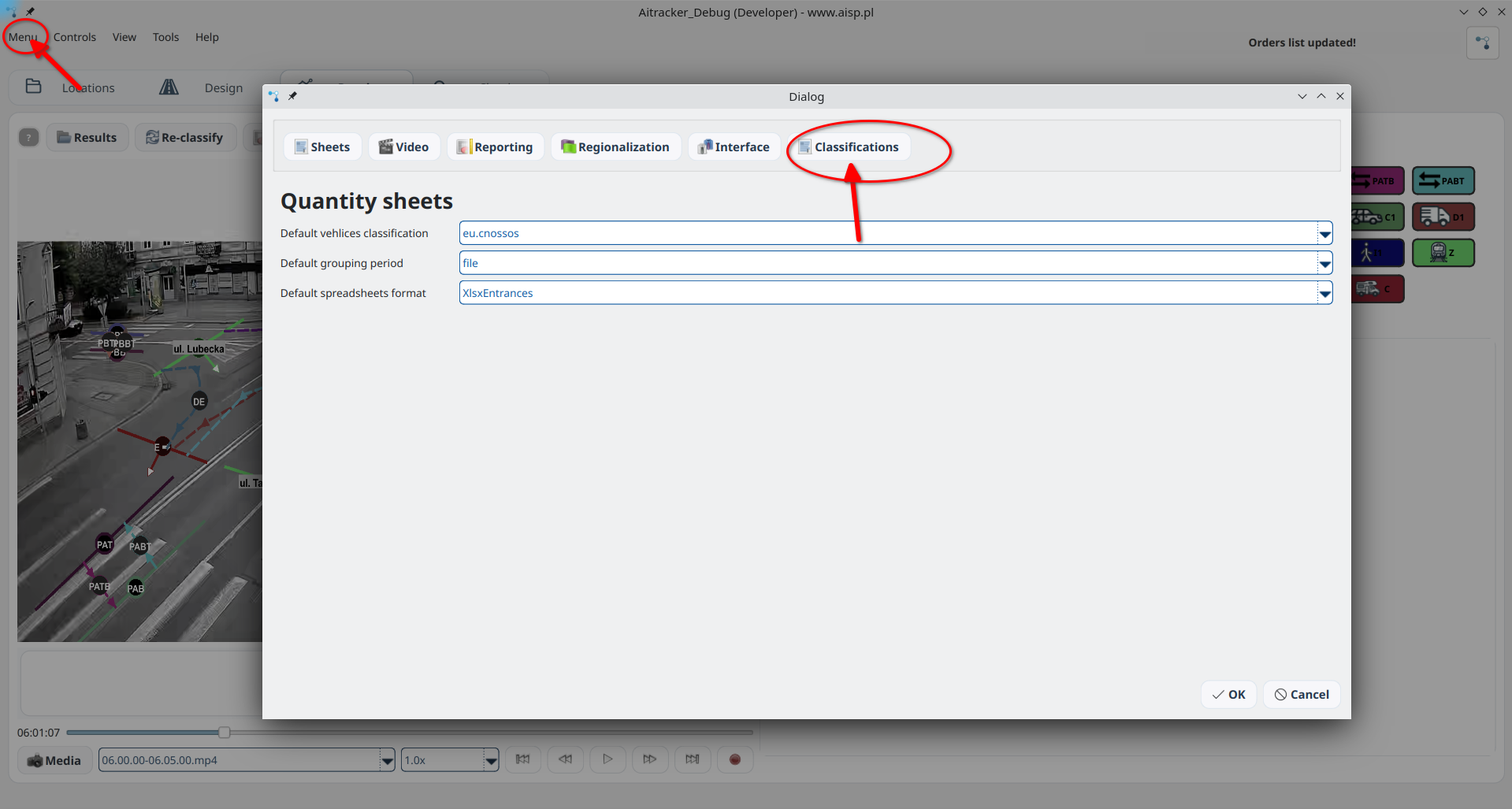
Otwórz edytor
- Otwórz Ustawienia.
- Przejdź do sekcji Klasyfikacje.
- Kliknij Otwórz edytor klasyfikacji.
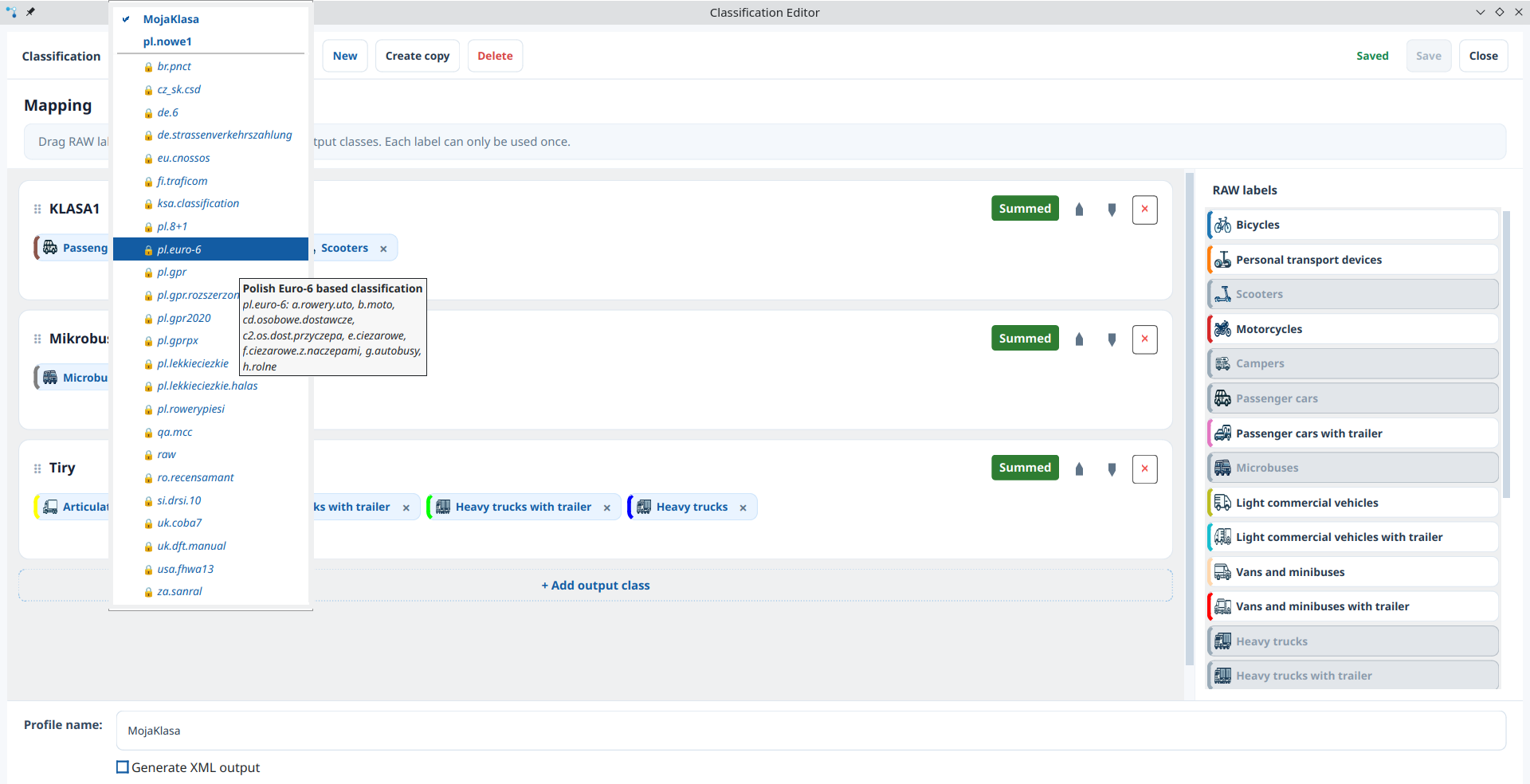
Klasyfikacje wbudowane i klasyfikacje użytkownika
- Klasyfikacje wbudowane są tylko do odczytu, ale możesz utworzyć ich kopię
- Klasyfikacje użytkownika są edytowalne i zapisywane w
storage/settings.toml.
Utwórz nową klasyfikację
- Kliknij Nowy.
- Wpisz unikalną nazwę klasyfikacji.
- Dodaj klasy wyjściowe i przypisz do nich etykiety RAW.
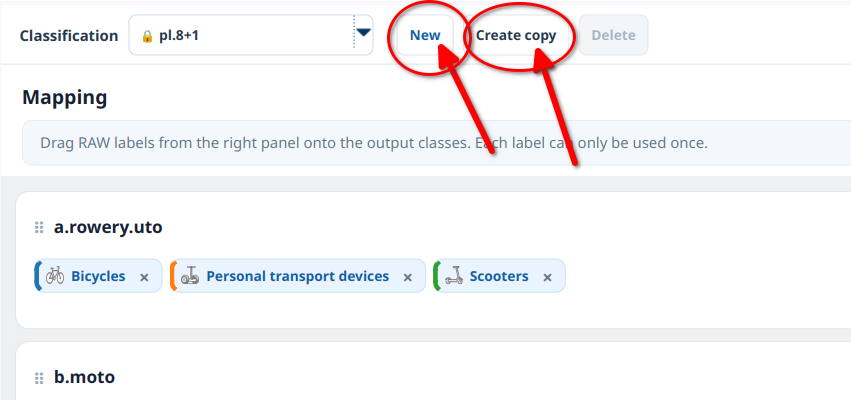
Utwórz kopię
- Wybierz dowolny profil (wbudowany lub użytkownika).
- Kliknij Utwórz kopię i wpisz unikalną nazwę dla nowego profilu.
Skopiowany profil staje się edytowalny.
Edytuj mapowanie (przeciągnij i upuść)
Obszar centrum zawiera:
- panel lewy: klasy wyjściowe (strefy upuszczenia)
- panel prawy: etykiety RAW
Aby zmapować klasy, przeciągnij etykietę RAW z prawego panelu i upuść ją w klasę wyjściową po lewej.

Reguły wymuszane przez edytor:
- jedna etykieta RAW może być przypisana tylko raz globalnie
- nazwy klas wyjściowych muszą być unikalne
Możesz również przeciągnąć już przypisany chip między klasy wyjściowe, aby go przenieść.
Zarządzaj klasami wyjściowymi
Wewnątrz obszaru roboczego mapowania możesz:
- kliknąć + Dodaj klasę wyjściową
- usunąć klasę przyciskiem usuwania
- zmienić kolejność klas za pomocą ▲ / ▼
- oznaczyć każdą klasę jako Sumowana lub Niesumowana
Klasy Niesumowane pozostają dostępne jako kategorie, ale nie wchodzą do kolumny SUMA tworzonej w arkuszach CSV. To ustawienie jest niezależne od stanu walidacji trackera Liczony / Nieliczony.
Aktualizuj metadane
W panelu ustawień u dołu:
- Nazwa profilu ustawia identyfikator klasyfikacji
- Generuj wyjście XML steruje możliwością eksportu XML, głównie dla Generalnego Pomiaru Ruchu

Zapisz i zamknij
Kliknij Zapisz, aby sprawdzić i trwale zapisać klasyfikację. Jeżeli zamkniesz edytor z niezapisanymi zmianami, wybierz zapisanie zmian, ich odrzucenie albo powrót do edycji.