How to design a measurement using AITracker GUI?
Recordings are just video. In order for the system to count all existing objects and for the client to receive the results, the measurement point must first be configured. The minimum configuration is
- Selection of the AI detector and the counted classes of objects,
- Drawing relations or sections,
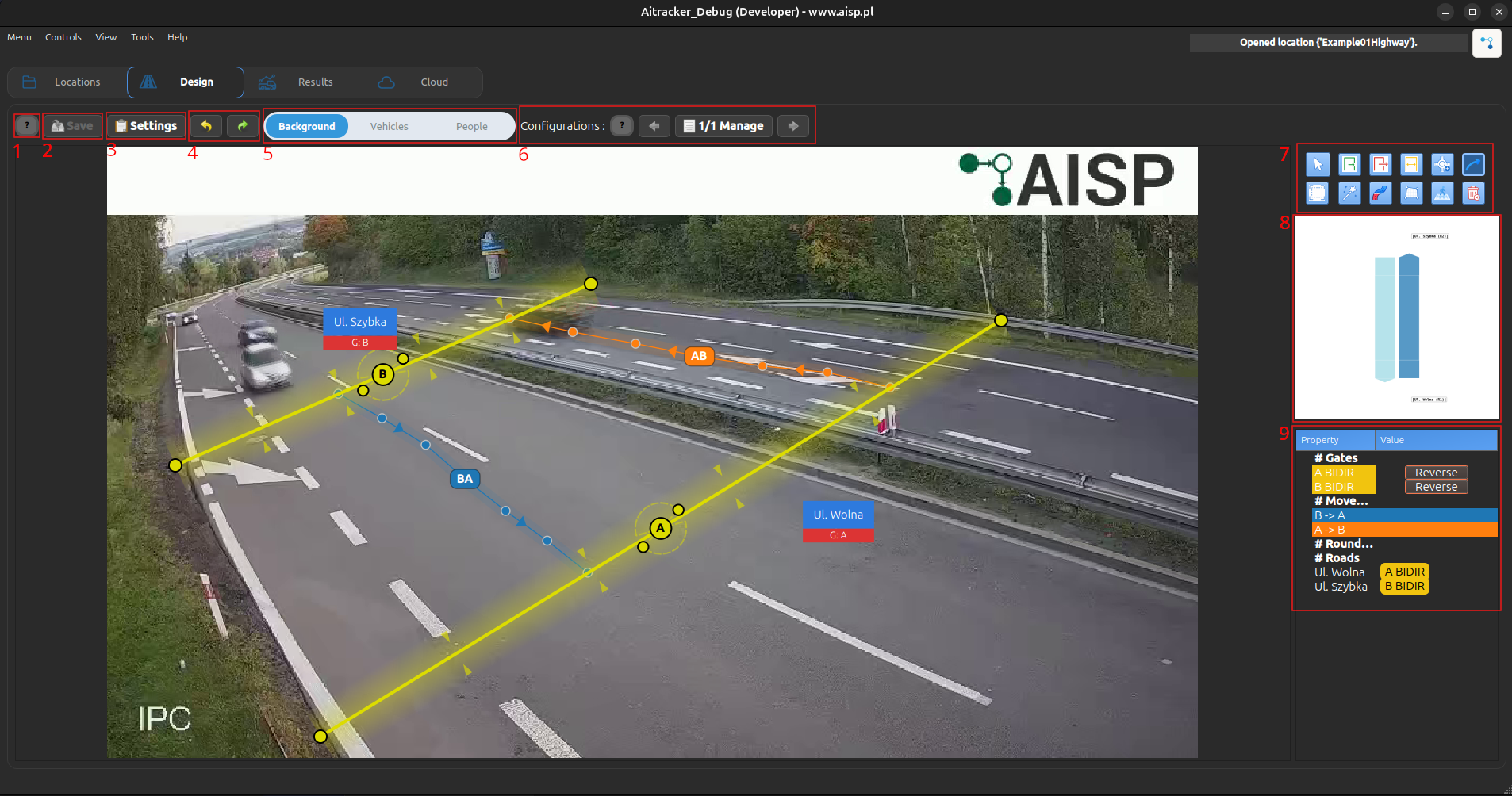
The following overview applies to the Design tab in AITracker GUI.

information (1)
When you click the information button, you can see all the information about the Design page.
save (2)
When you make changes on the Design page, you can save the configuration by clicking the Save
settings (3)
You can change the settings, including:
- Service
- Report
- Video
- Point
- Restriction
See also: Settings
undo, redo (4)
You can undo or redo changes while modifying the Design page.
show image (5)
You can change the image view on the Design page:
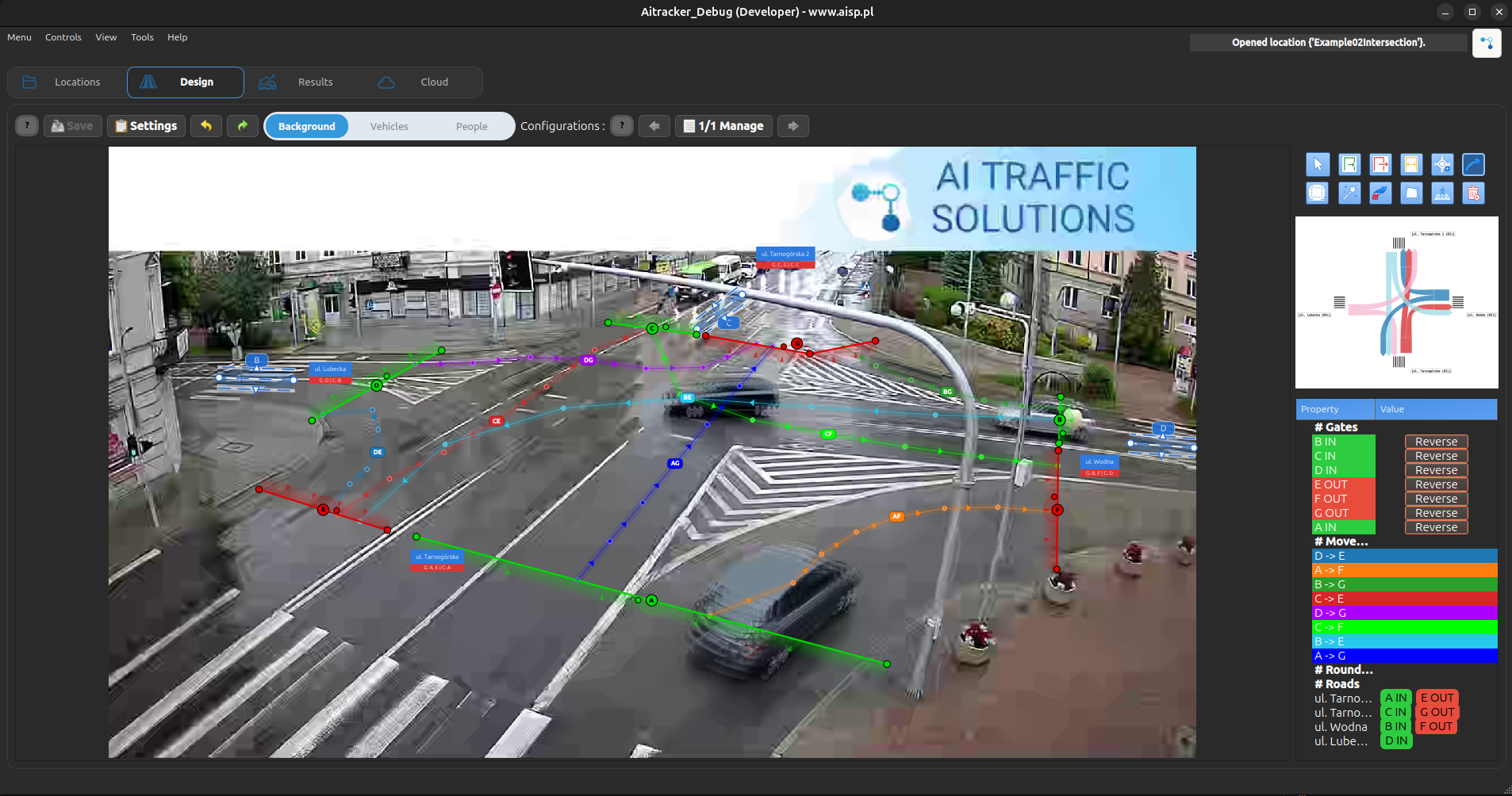
- Background – displays the original background image.

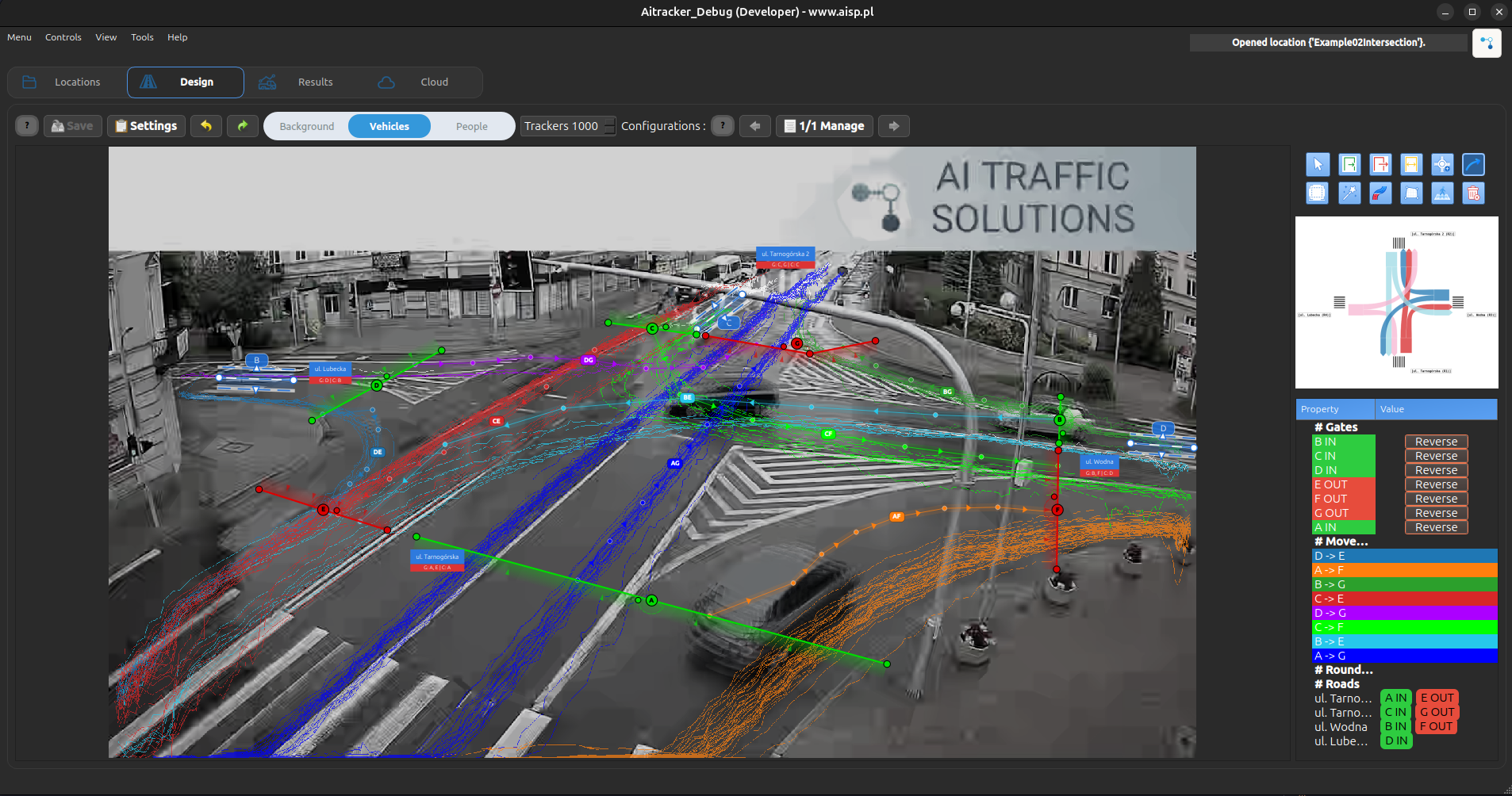
- Vehicles – displays a grayed-out background image with vehicle trajectories.

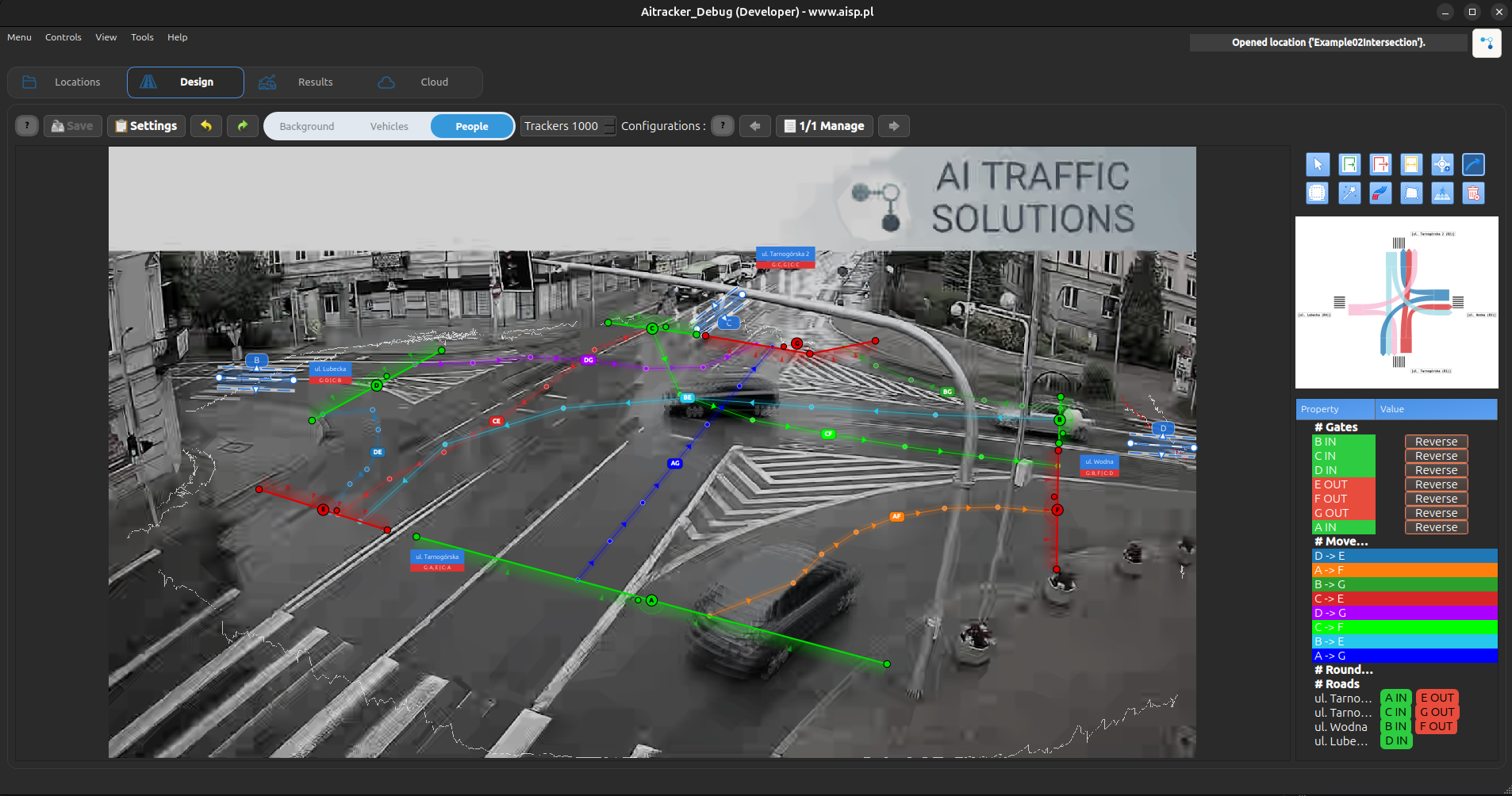
- People – displays a grayed-out background image with pedestrian trajectories.

multi configuration (6)
See also: Multiple point configurations - Learn how to use multiple configurations for a single measurement point.
tools (7)
pointer
Using the Pointer tool, you can select objects on the Design view, such as gates, movements, and other elements.
Gates, movements
See also: gate and movement setup - Learn how to add gates and movements, and how to assign them to each other.
Roundabout
See also: Roundabout setup - Learn how to add roundabouts, assign gates, and auto-generate movements.
Crop image
See also: cropping zoom - Learn how to crop image
Magic wand
The Magic Wand automatically assigns movements to all gates.
Road
See also: Road - Learn how add road
Speed/distance
See also: Speed measurement service - Detailed guide on configuring and using speed measurement.
Pedestrains Crossig
See also: pedestrians crossing - Learn how to add pedestrains
clean config
Click to clear the entire active configuration.
Cartogram (8)
See also: Cartogram - Learn about cartogram
Gates, movements, roads, RoundAbout table (9)
See also: table - Learn about table